Managing your Credits
ReluxDesktop > AI-Image generation > Managing your credits
Manage your AI credits easily to keep creating high-quality AI-generated images for your lighting projects.
When you log into relux.com, and go to my account, an option to see and manage credits is available as shown below:
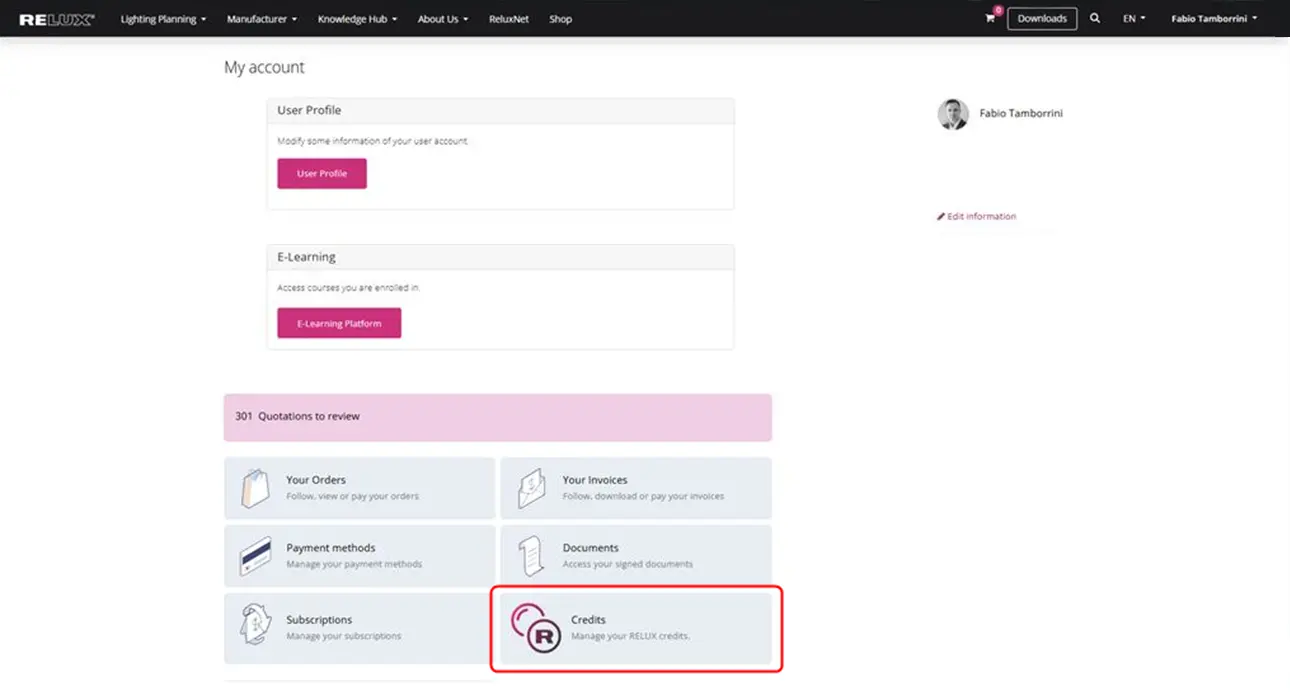
Open your account dashboard and scroll down to select the "Credits" tile to access your balance and settings.
After clicking on that card, you will see a new view with the following information:
- Manage organisation button
- Current Balance
- Current shared balance
- Renewal of credits options (see details below)
- Transaction history with a button to download it as an Excel file.
- Date: the datetime of the transaction
- Type: type of the transaction could be an image generation, a purchase …
- Purchase Reference: Relux Sales number
- Amount: the amount of credits deducted or added to the balance by the transaction
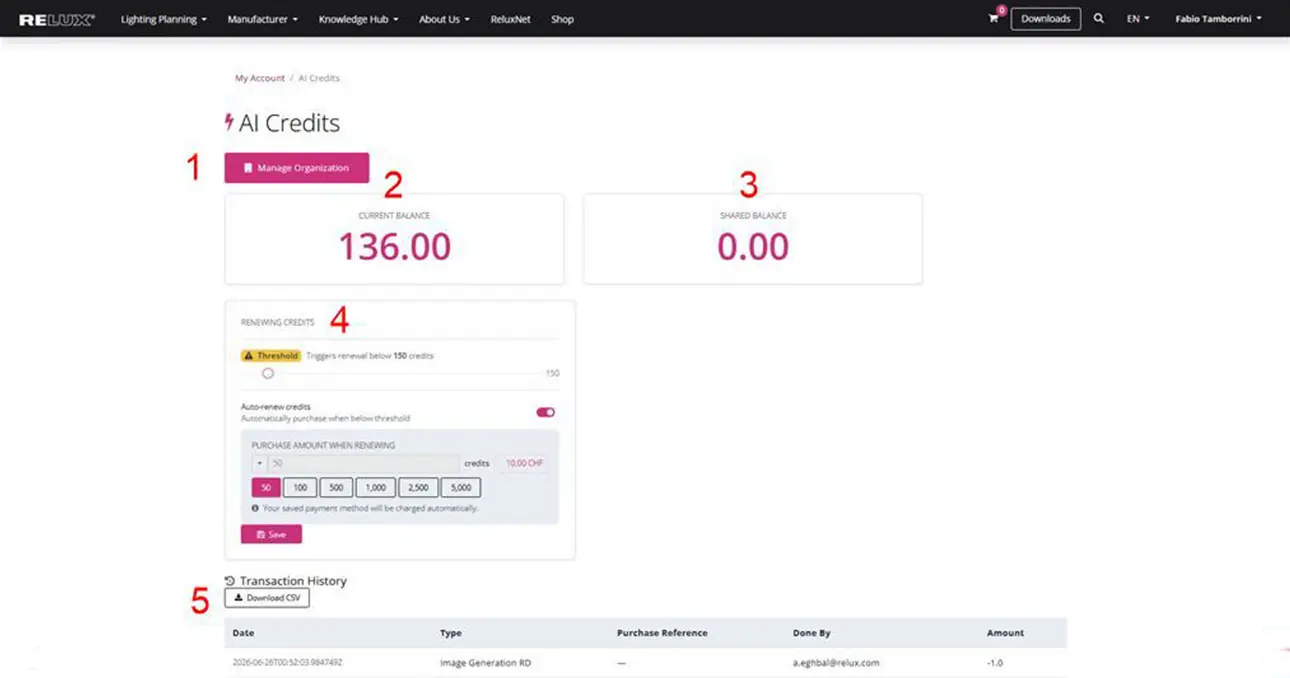
The AI Credits main page lets you view your personal balance (2) or shared balance (3), configure auto-renewals (4), view transaction history (5), and manage your organization (1).
Automatic renewal of credits:
1. Auto-renew Credits
When the "Auto-renew Credits"(1) toggle is enabled, the customer is automatically charged once their balance falls below a defined threshold.
2. Set the threshold
Use the slider to set the threshold at which the automatic recharge is triggered when the balance falls below it.
3. Set the renewal amount
Under "Purchase Amount when Renewing," set the number of credits to be purchased once the balance falls below the threshold. When selecting the credit amount, the corresponding price is displayed on the right.
4. Payment
If no credit card is saved, the system displays a warning, including a link for the customer to store a credit card
5. Save the settings
Clicking "Save" will show either "Saved!" or "Not Saved – Error", depending on the outcome.
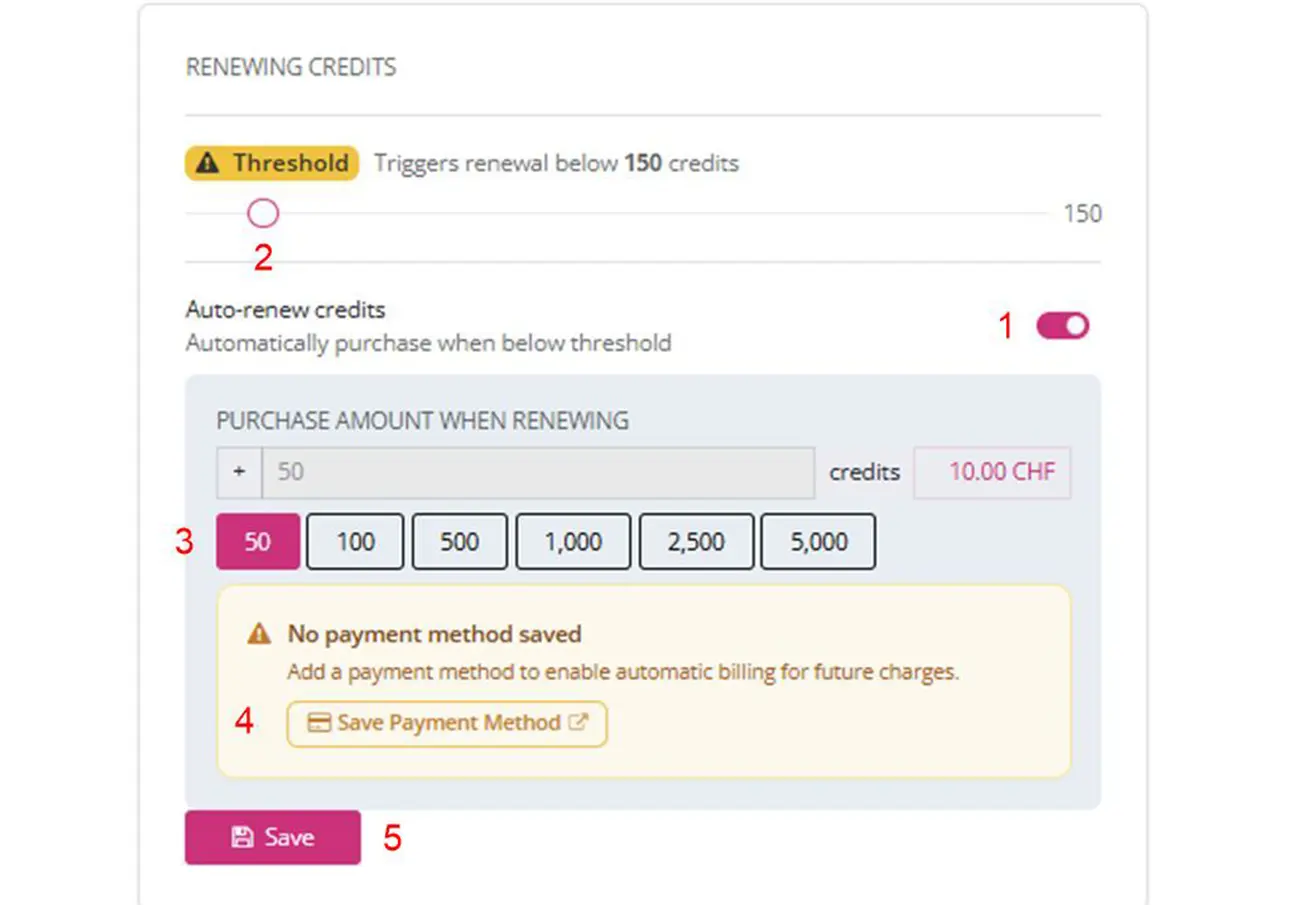
Enable auto-renew credits (1), set your minimum threshold (2), choose a package amount (3), link a payment method (4), and click "Save" (5) to guarantee continuous rendering service.
Sub User Management
Clicking on 'Manage Organisation' will take you to the sub-user management section
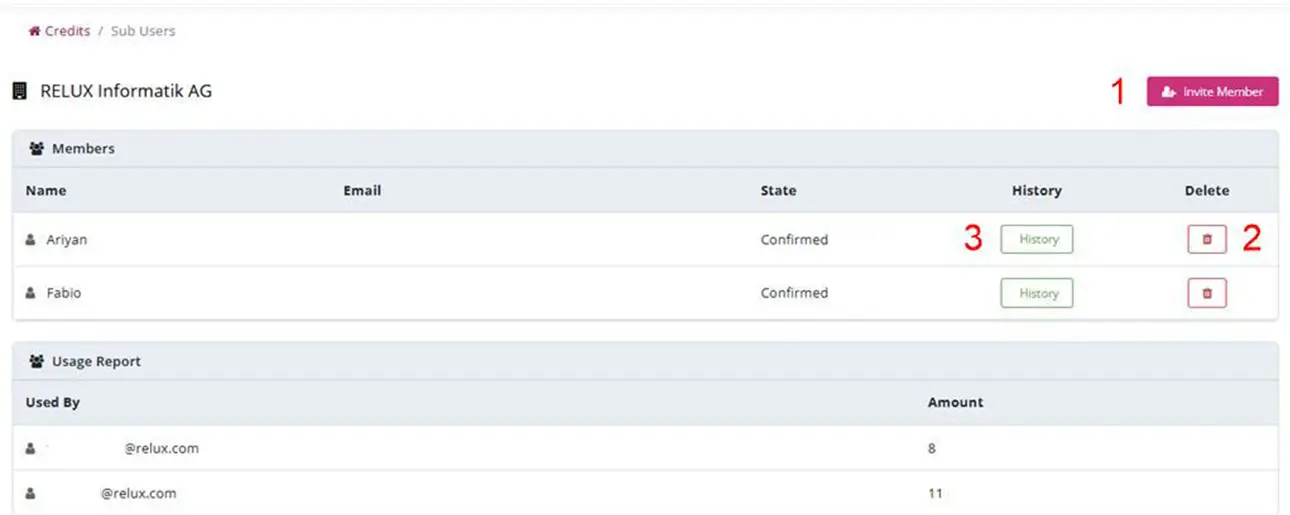
Invite team members (1), delete users (2), or check individual usage histories (3) and overall credit consumption reports in the organization dashboard.
Invite new users to your credits wallet.
Click on the “Invite Member” button, and a pop-up will show:
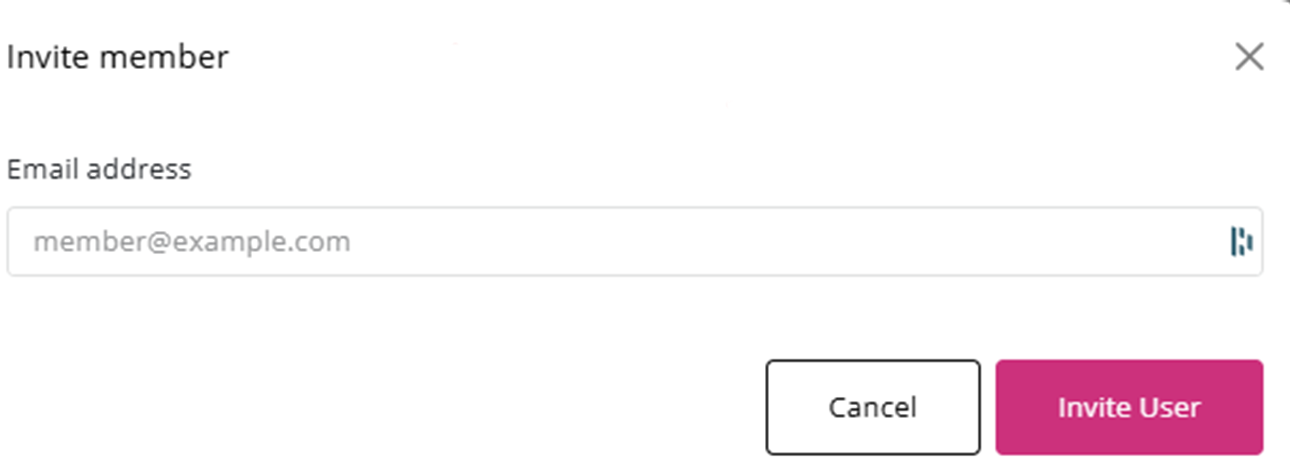
Type the email address of your colleague and click "Invite User" to share your organization's credit balance.
Removing users
From the list of members (sub-users), click the trash icon next to the user you want to remove. A confirmation message will appear. Once confirmed, the removed sub-user receives an email notifying them that their access has been revoked.
History
This report shows a summary of the credits used by each sub-user and each organisation.