ReluxDesktop – Interactive mode
ReluxDesktop > Exterior lighting planning > Interactive mode
This allows you to view and analyse preliminary results quickly.
Explanation
Interactive mode output/results
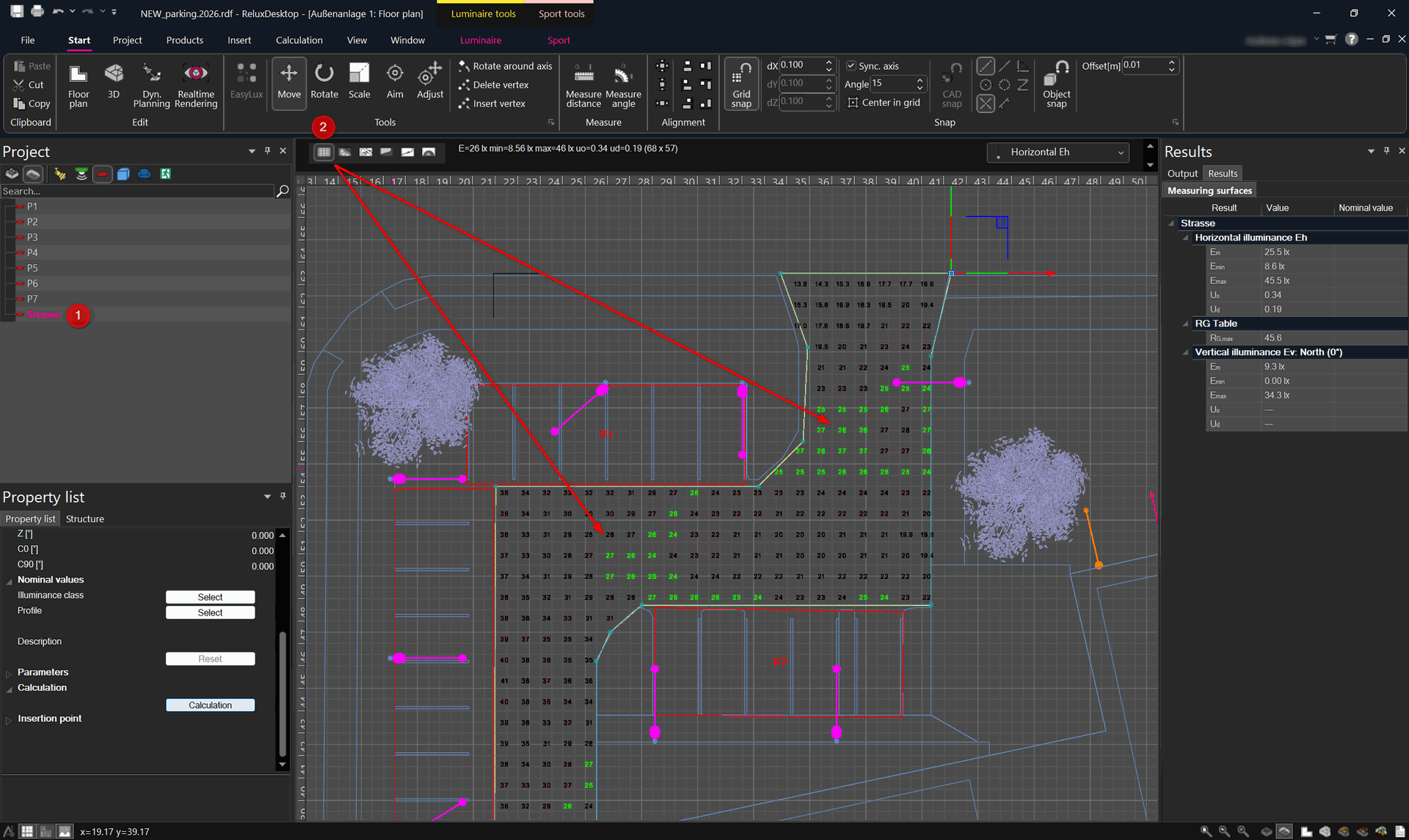
To run the "interactive mode", ensure
that the designated measuring surface is selected and that the "calculation grid" button is pressed.
You will get immediately the value/results from a pre-calculation on the measuring surface. (1,2)
Adding measurement values
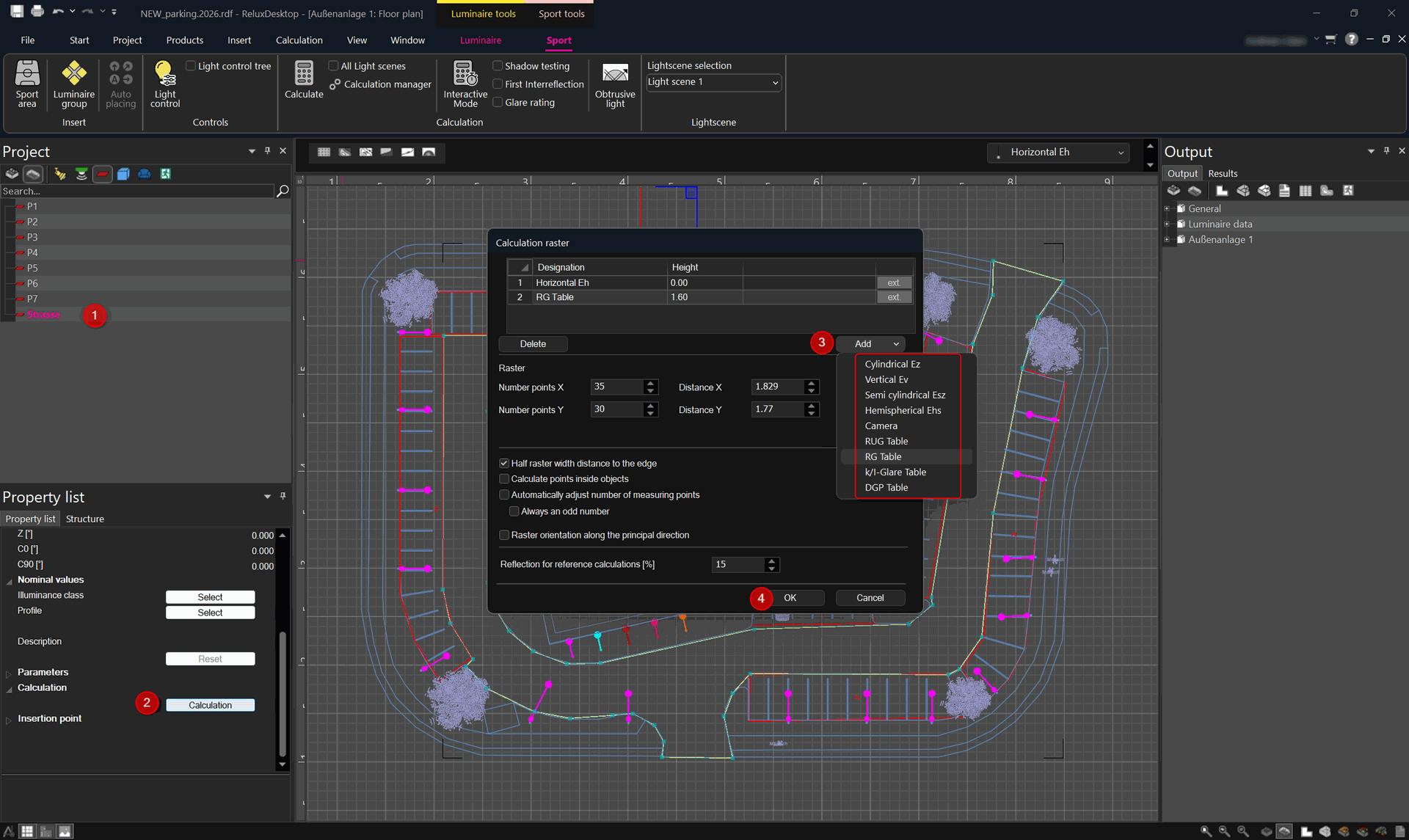
Confirm by clicking OK. (1,2,3,4)
Adjustment
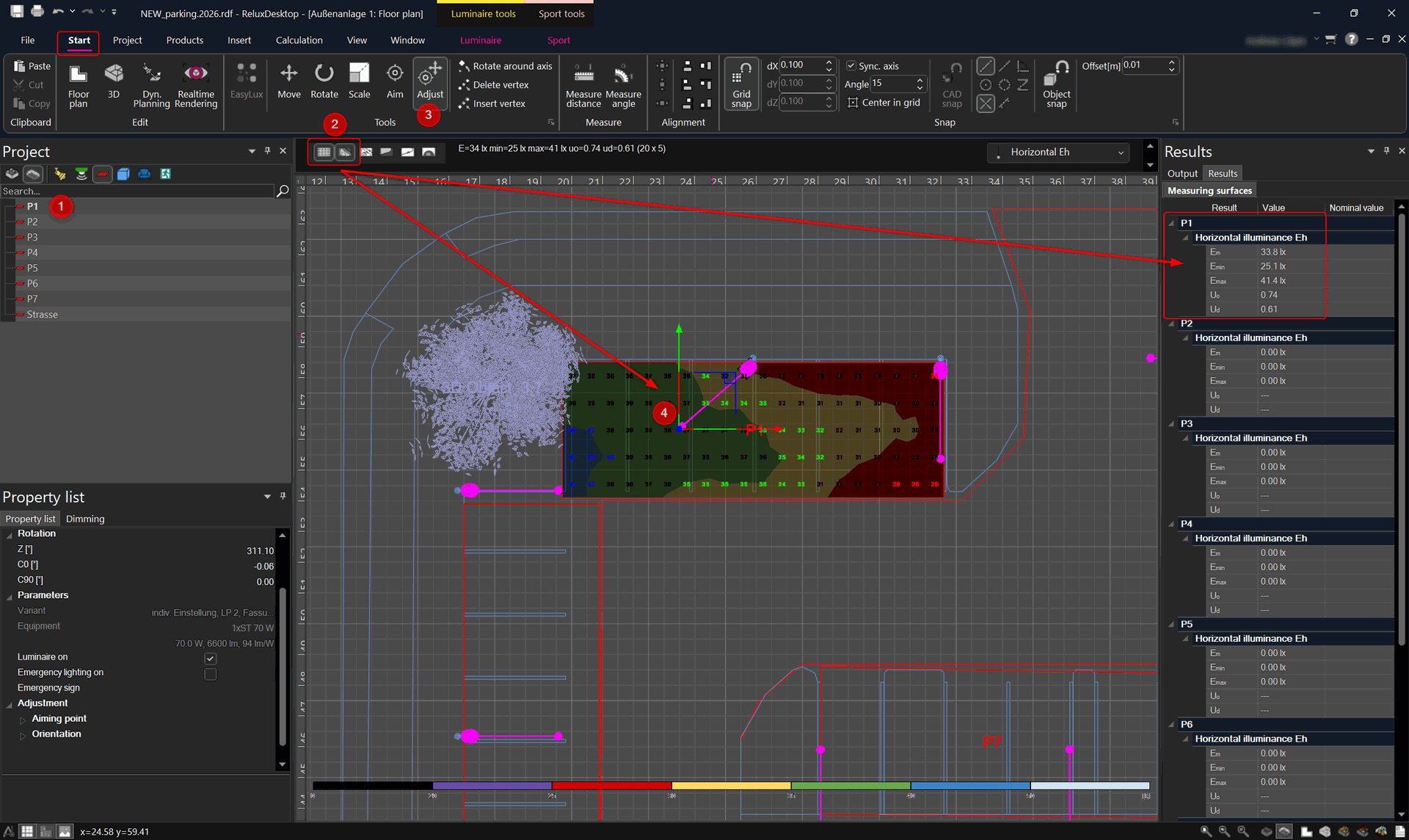
By selecting another measuring surface, immediate results will be displayed and also shown in the "Results" tab. You can also apply the false colour view as shown. (1,2) To speed up the planning process, particularly when adjusting luminaire aiming, Relux has implemented the Adjustment tool. Activate the "Adjust" button. Now select the designated "aiming arrow" by clicking on it and move it in the desired direction. (3,4) The results are updated immediately.
Note: The Adjustment tool works in both views, 2D and 3D.
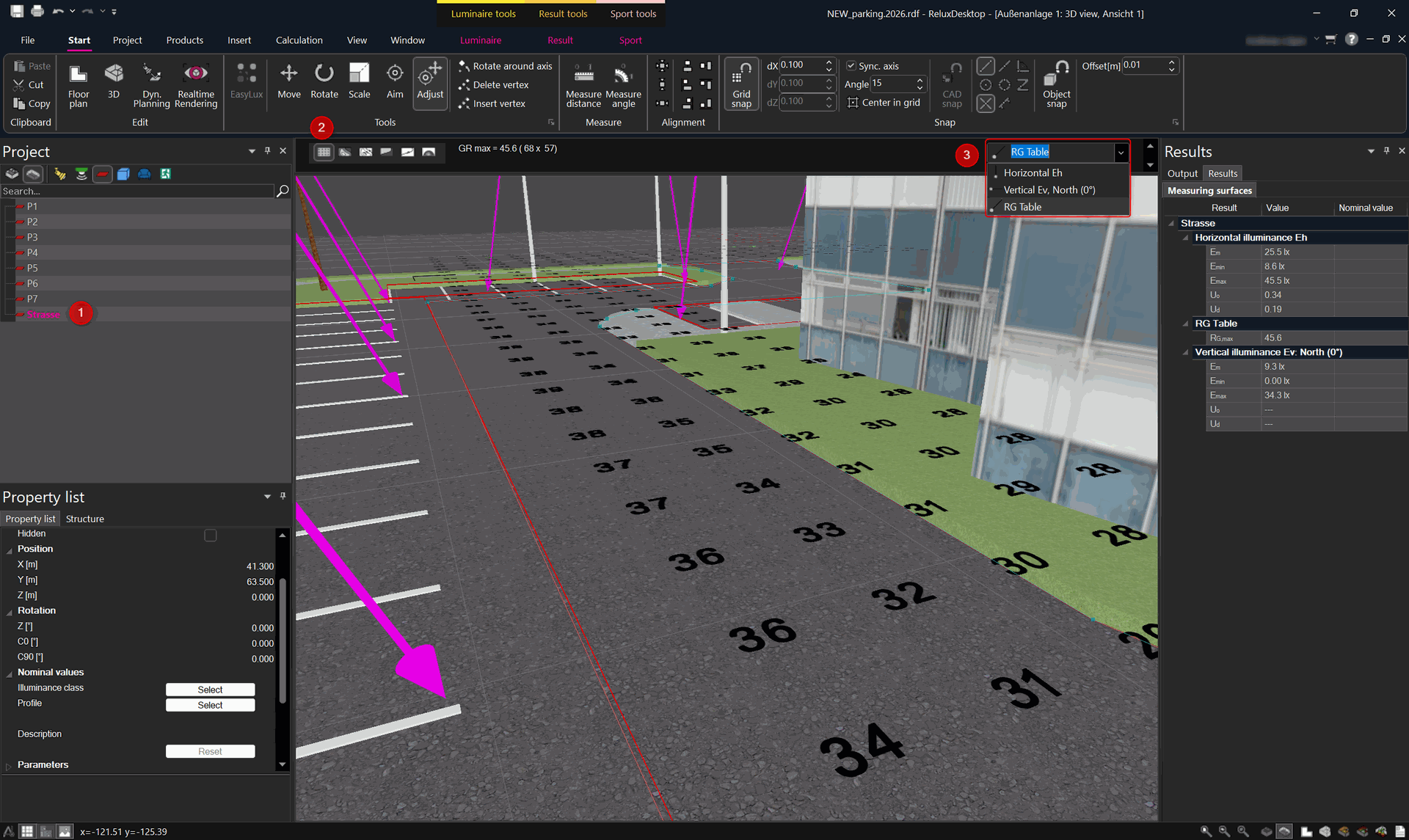
In addition you can switch to one of the other result types. (1,2,3) For example the "RG Table".
Multi-view
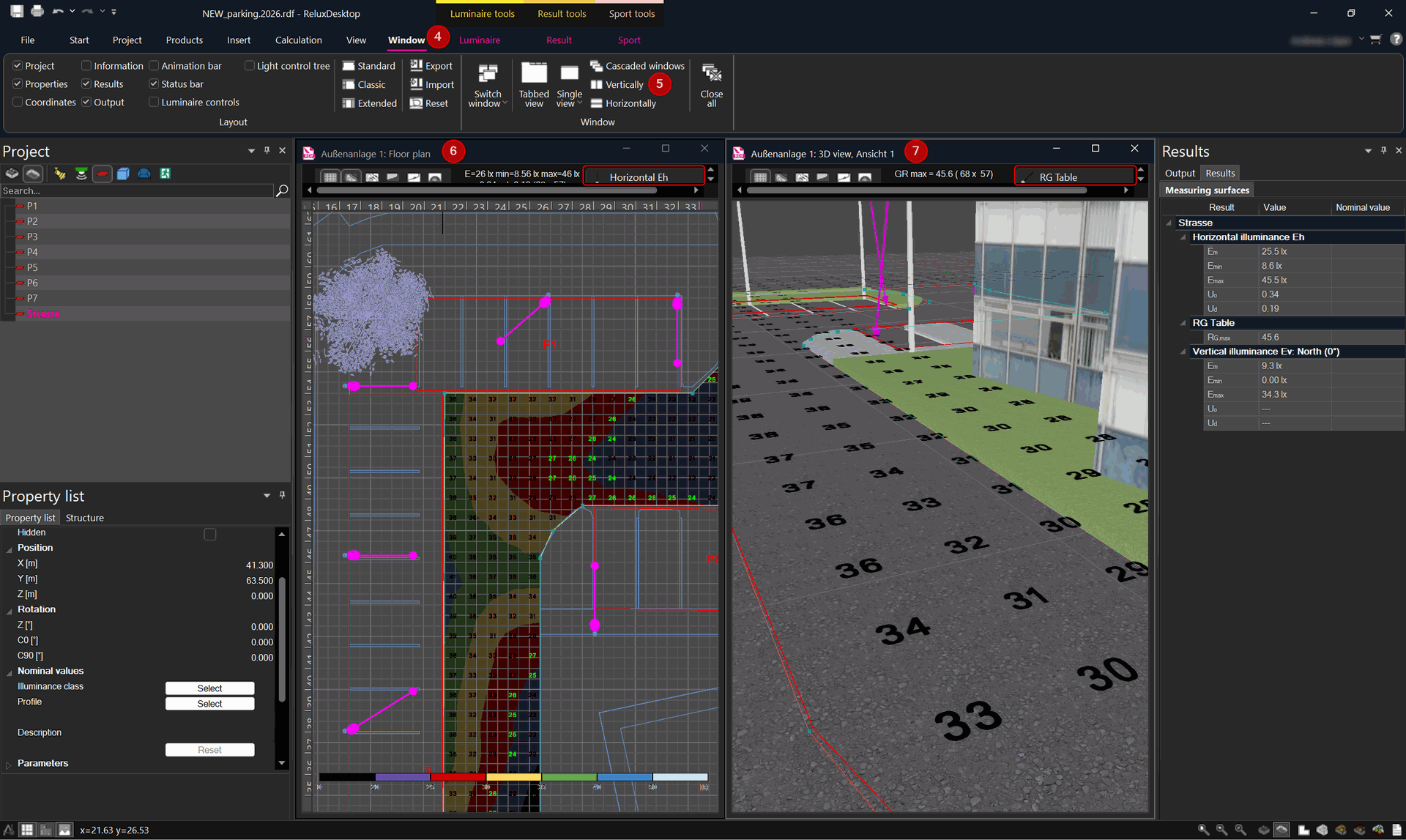
The results can be displayed in a multi-view, 2D and 3D simultaneously. For this, go to the 2D view "Floor Plan" > "Window" ribbon > "Vertically". (4,5)
Now you have a multi-view representation. (6,7) Working in a multi-view perspective enables you to track any result type changes effectively and immediately.
In particular, when shifting the aiming arrow like in the 2D view, you can not only see the changes in horizontal illuminance but also the changes in the 3D view regarding the GR table results.
Interactive mode