ReluxDesktop – AI-Image generation

ReluxDesktop > Interior lighting planning > AI-Image generation

Create AI-generated images of your lighting design to achieve even better output documentation.

Explanation

Use this function when you want to visualise a room based on your lighting design project, taking the relevant room profile into account. For better results, rename the room to describe its type (e.g. hairdresser, fitness centre). The AI also receives the product image for each luminaire, so working with articles from the Relux database is recommended, as these include an image. Manually placed furniture and objects, windows, doors, and materials are also taken into account when generating the image. The more information provided, the less the AI has to interpret on its own.

Current limitations: Only one luminaire type per room is supported, and only interior rooms can be visualised. Both limitations will be addressed in future updates.

Credits: Generating images requires credits, either purchased via the webshop or made available through access to another wallet. Each user receives 5 credits free of charge by default. One generated image corresponds to 1 credit.

Step-by-step Guide


1. Room description


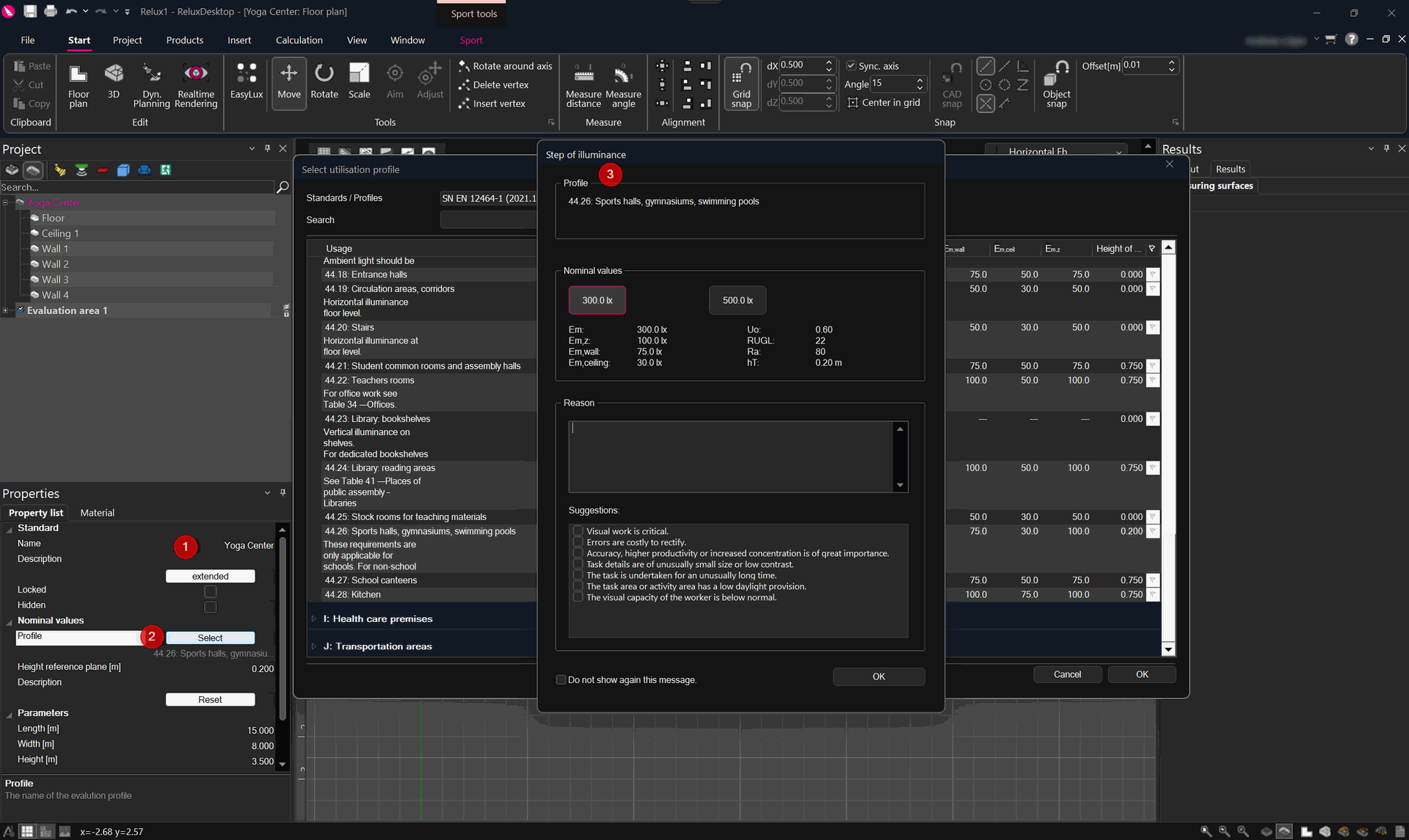
  1. Name the room to describe its type (e.g. office, hairdresser salon, yoga center)

  2. Select the appropriate usage profile.
This screenshot shows the ReluxDesktop user interface during the setup of an evaluation area for an indoor sports lighting project. On the left side, the Property List is highlighted with numbered markers indicating where users can select an evaluation profile. After clicking Select, the Step of Evaluation dialog opens, allowing the user to choose a predefined lighting standard profile. In this example, the selected profile is "44.26 Sports halls, gymnasiums, swimming pools" from EN 12464-1:2021. The dialog displays the recommended lighting requirements, including maintained illuminance (500 lx), minimum illuminance, uniformity, glare rating (UGR), colour rendering index (Ra), and evaluation plane height. The interface helps lighting designers quickly apply standardized lighting requirements to sports facilities, ensuring compliance with international lighting standards before performing calculations.


ReluxDesktop – Selecting an Evaluation Profile for an Indoor Yoga Center Calculation


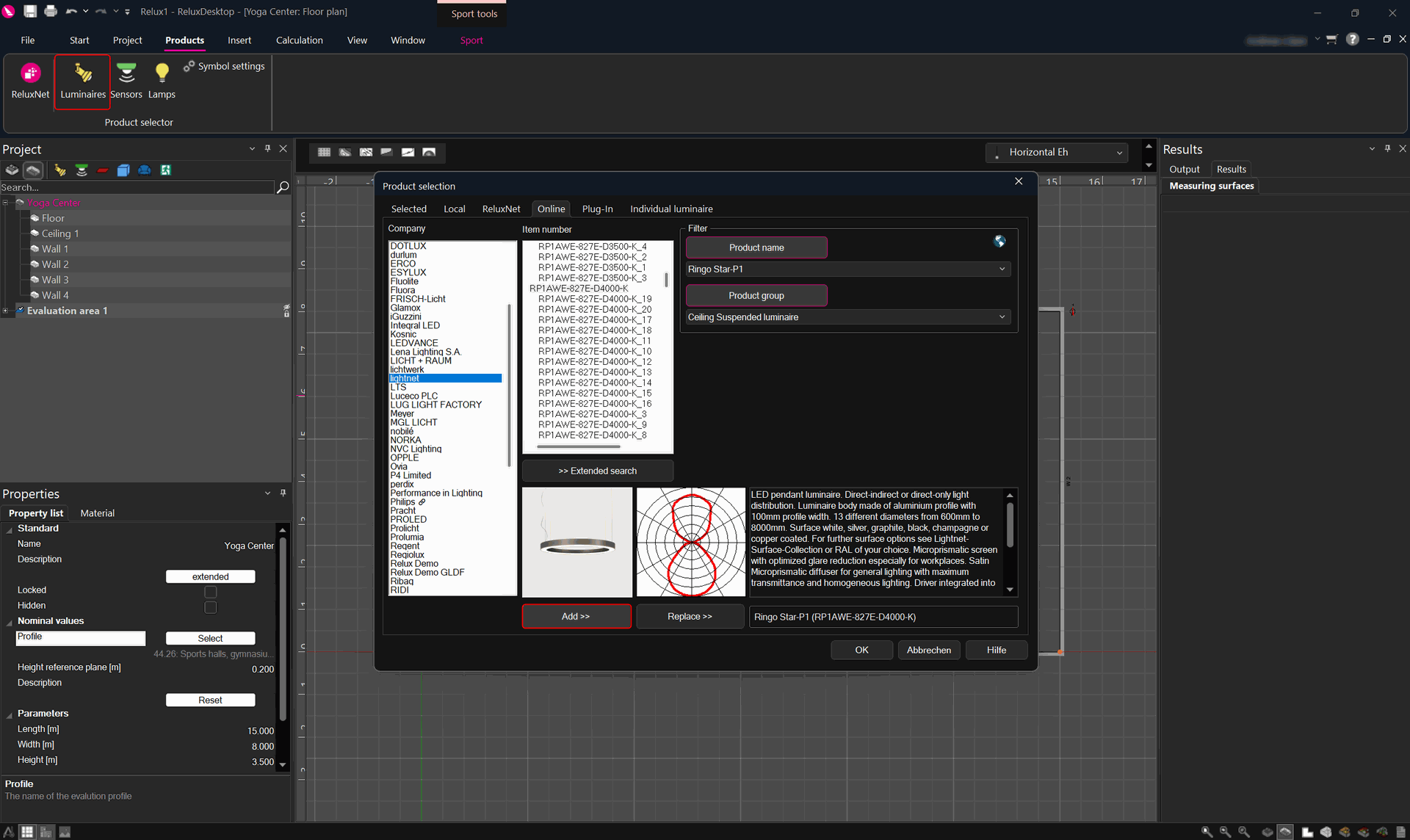
2. Select a luminaire

This screenshot displays the Luminaire Selection window in ReluxDesktop. Users can browse manufacturers, search for luminaires, filter products by name or product group, and review technical information before inserting a luminaire into the project. The example shows a suspended ring luminaire selected for a yoga center. The dialog includes product images, photometric previews, technical specifications, and filtering tools to help lighting designers choose suitable luminaires for professional lighting calculations.                      
ReluxDesktop – Selecting a Luminaire from the Product Database 


3. Run a calculation


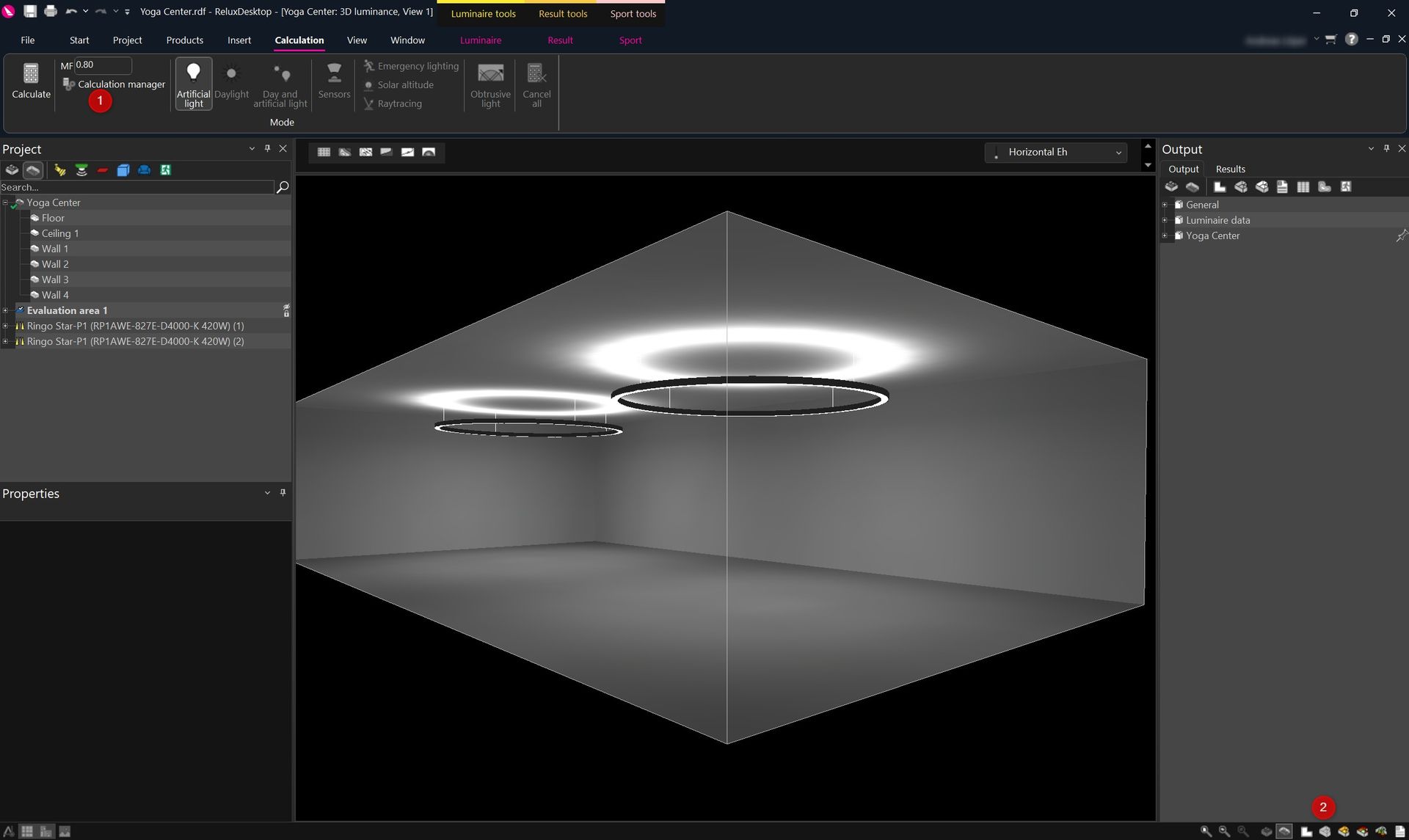
  1. Place the luminaires and run a calculation

  2. Switch to luminance view  

This screenshot shows a completed lighting calculation in the ReluxDesktop 3D luminance view. After calculating the project, users can open the Result tab and start the AI Rendering function. The highlighted controls demonstrate where to access the rendering feature and the AI rendering credits menu. This workflow transforms the technical lighting calculation into a realistic visualization while preserving the calculated lighting distribution.


ReluxDesktop – Starting an AI Rendering from the 3D View


4. AI image generation


  1. Check your credits

  2. Switch to the Results tab and press AI Rendering
    The system takes into account the view angle you have set.
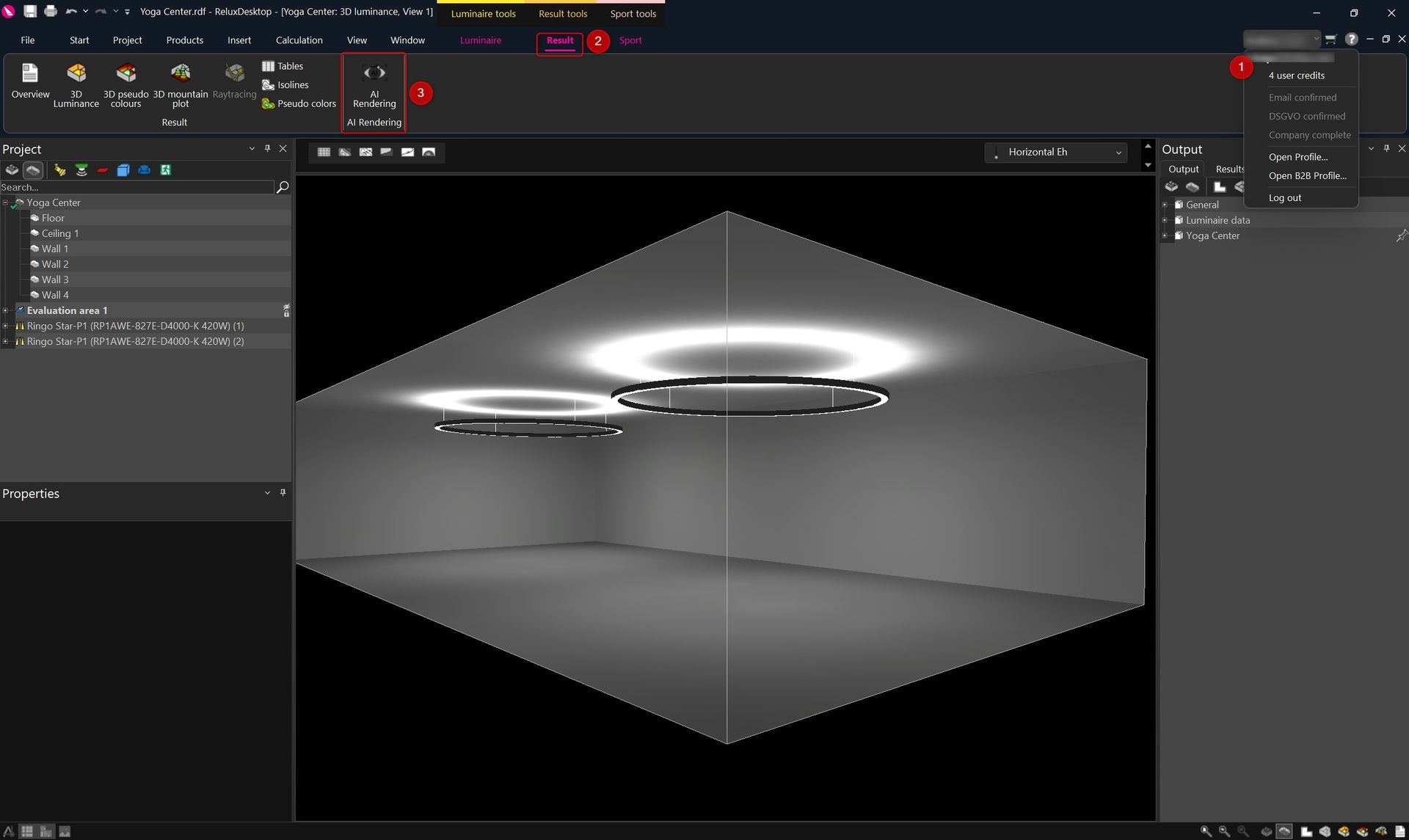
The screenshot highlights the AI Rendering workflow inside ReluxDesktop . Users first verify their available AI rendering credits before selecting AI Rendering from the Result ribbon. The feature generates realistic interior visualizations directly from the calculated lighting model, allowing designers to quickly create presentation-quality images without manually building a rendering scene in external software.


ReluxDesktop – Running an AI-Based Lighting Rendering


5. AI image in output tree


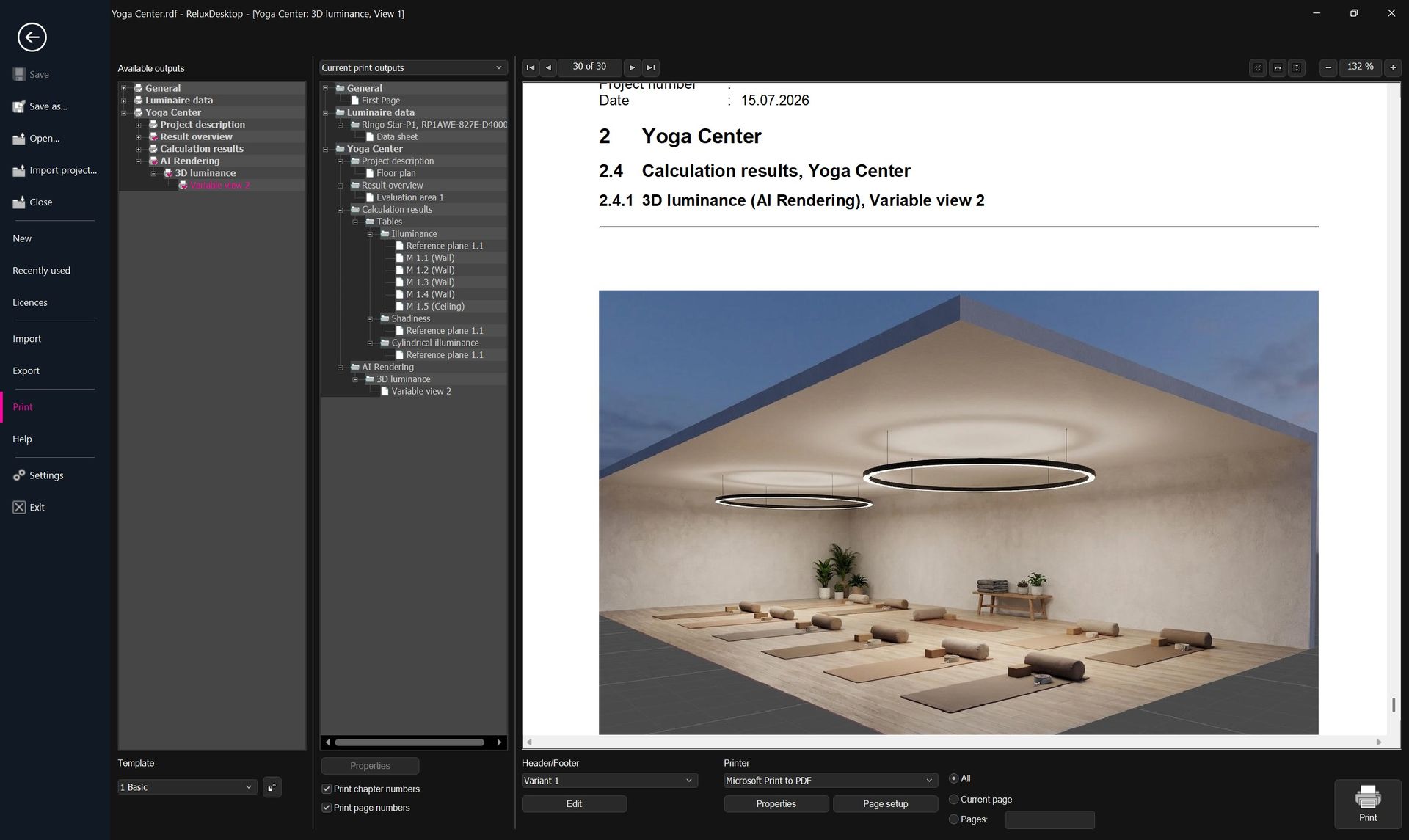
  1. You will find the AI-generated image in the output tree as well as in the print manager
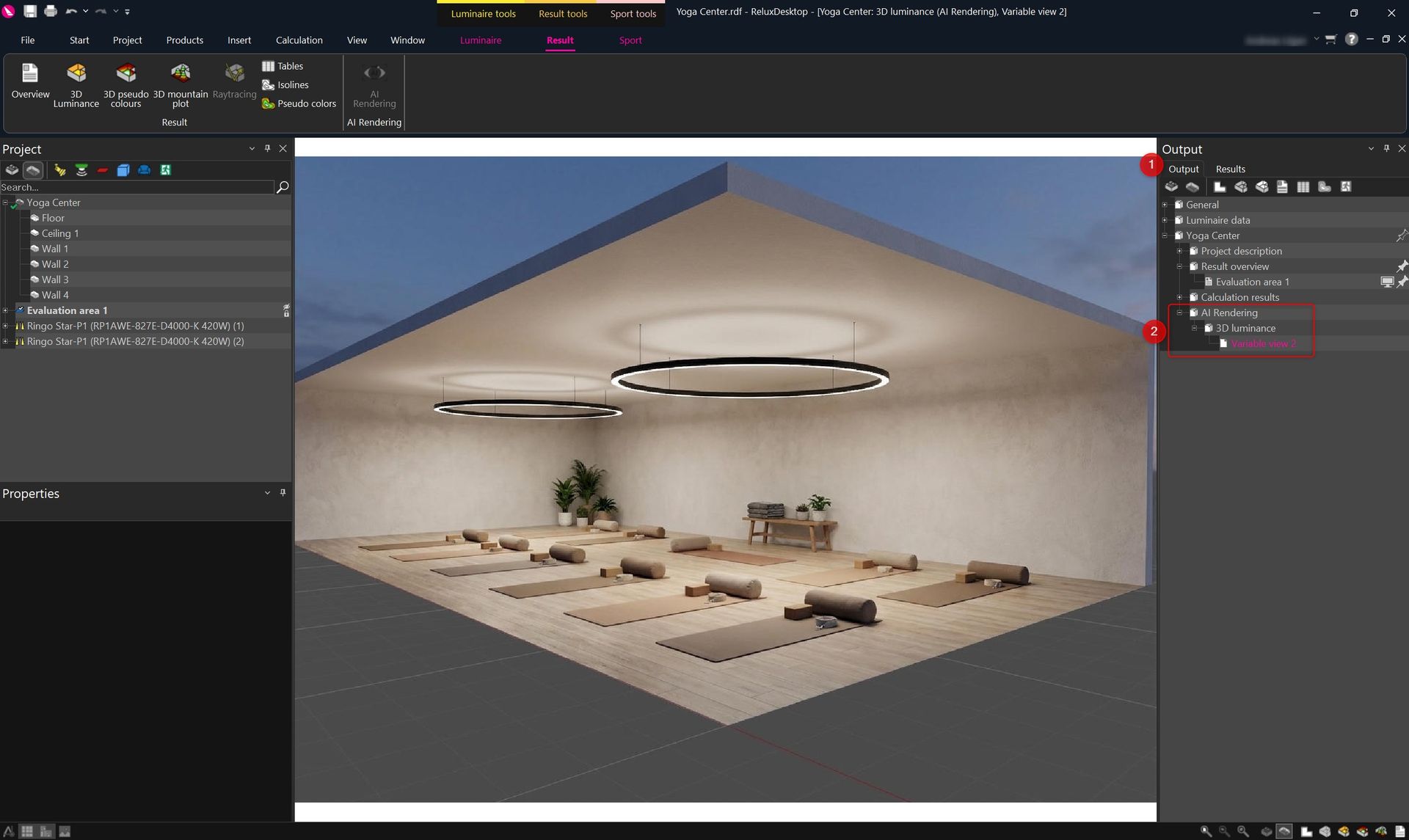
This screenshot presents the finished AI-rendered visualization generated directly within ReluxDesktop. The calculated lighting design has been transformed into a realistic yoga studio featuring detailed materials, furniture, decorative elements, and atmospheric lighting. The generated rendering appears as a new output in the project tree, allowing users to compare multiple AI-generated views while maintaining the original lighting calculation results.                      
ReluxDesktop – AI-Generated Photorealistic Lighting Visualization 

This screenshot displays the ReluxDesktop print preview interface after generating an AI rendering. The rendered visualization is integrated directly into the calculation report and can be included alongside standard lighting results and project documentation. Users can select report sections, configure templates, preview the final document, and print or export professional reports containing both technical lighting calculations and high-quality AI-generated visualizations.


ReluxDesktop – Printing AI Rendering Results in the Calculation Report 


To generate additional AI images, switch back to the luminance view and press the AI generation button again.

For each image, 1 credit will be deducted from your wallet


Need more help?

Ask Chatbot Luxi or submit a support request.