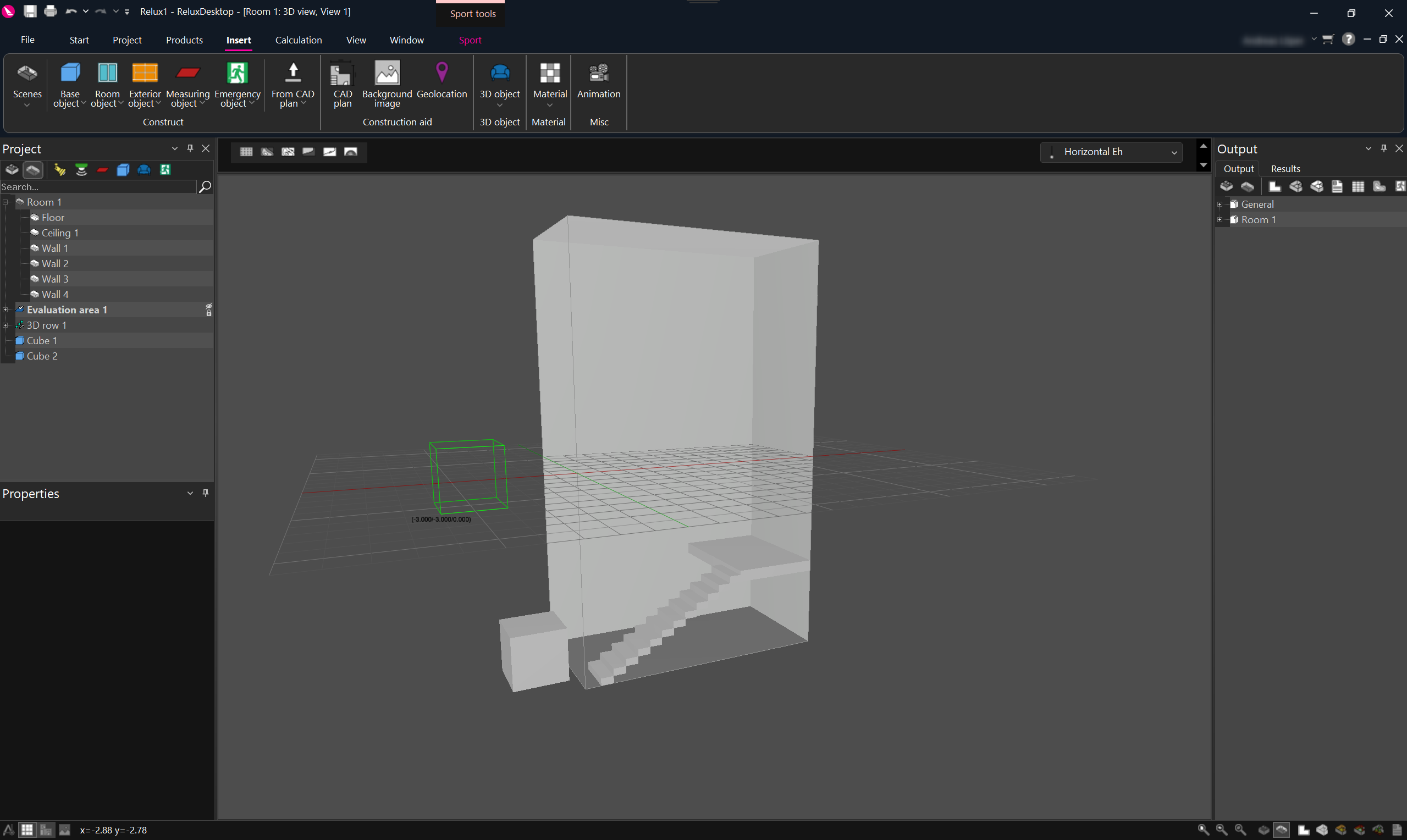
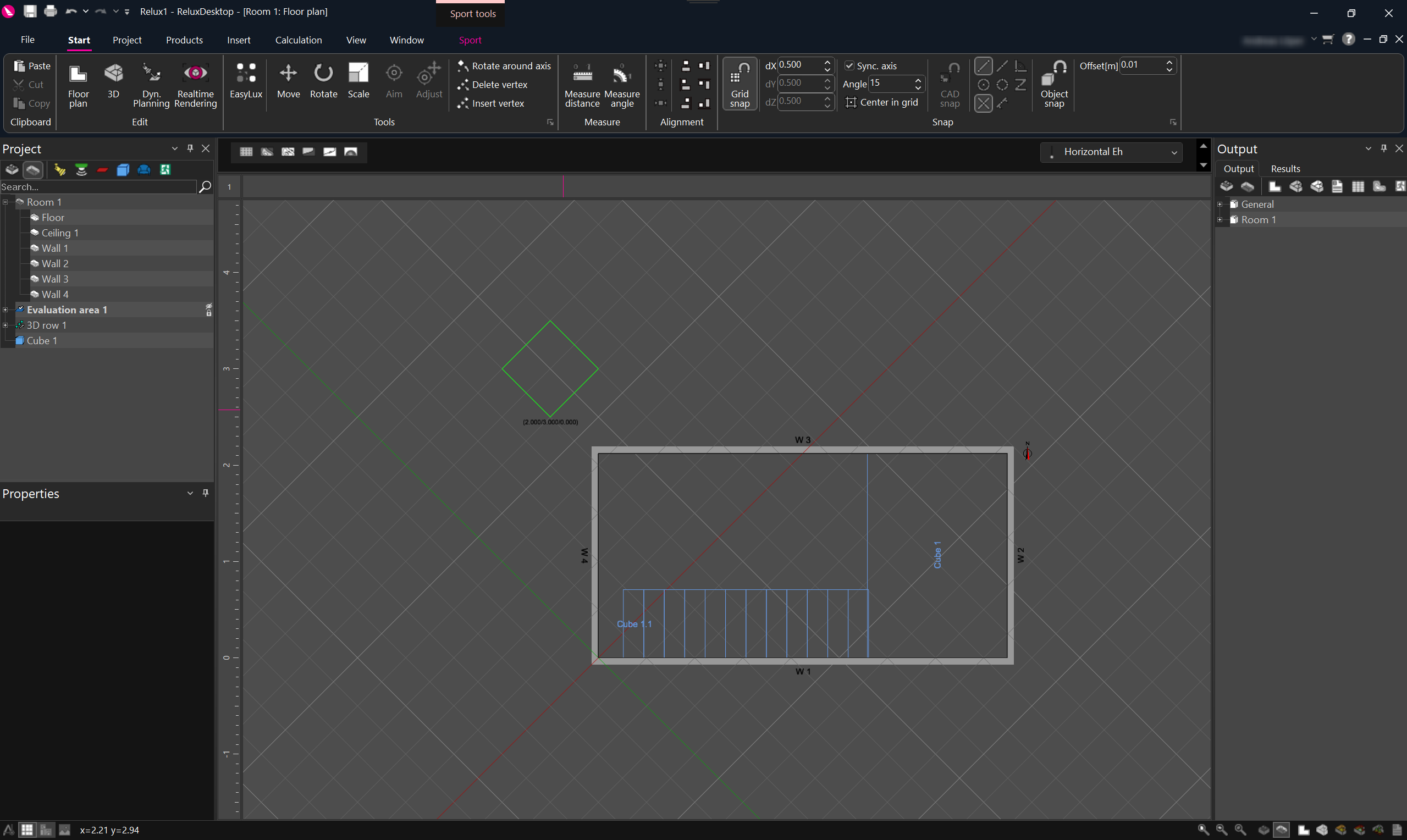
ReluxDesktop – Create, move and rotate a working plane
Create, move and rotate a working plane as desired.
Explanation
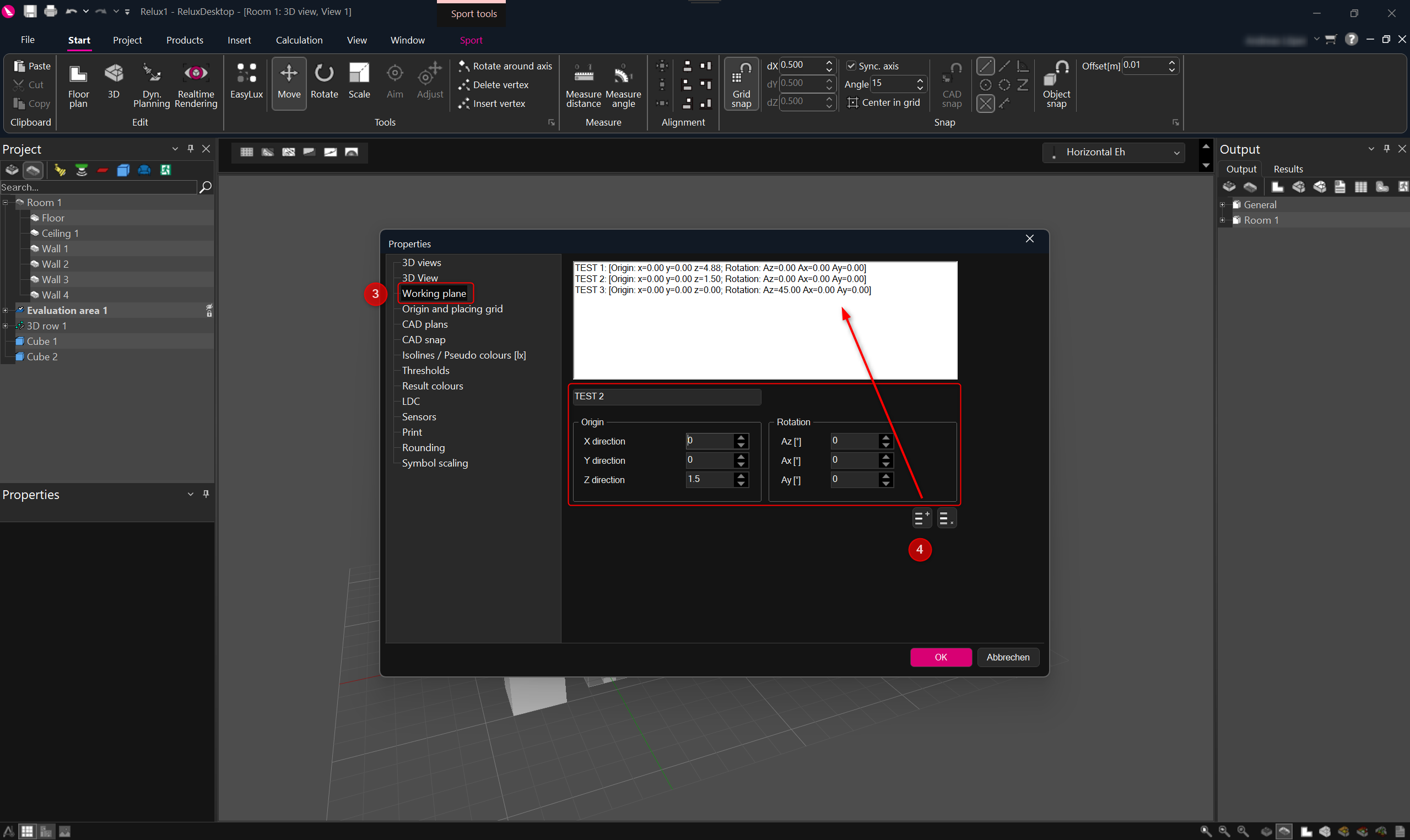
You can create new working planes and name them as required. You can also use the Properties-window to set the relevant parameters for positioning the individual working planes along the X, Y and Z axes or by rotation angle. (1,2,3,4)
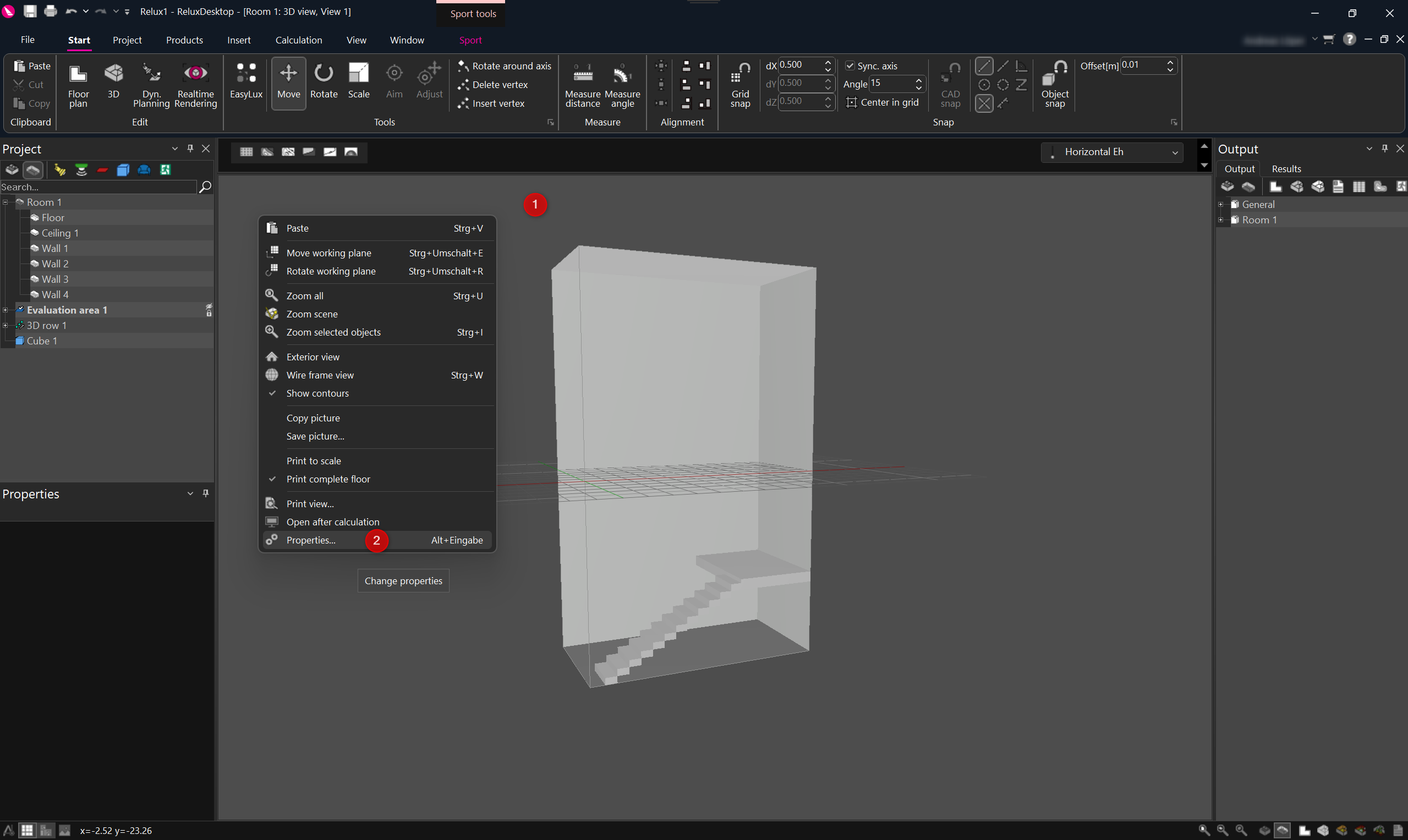
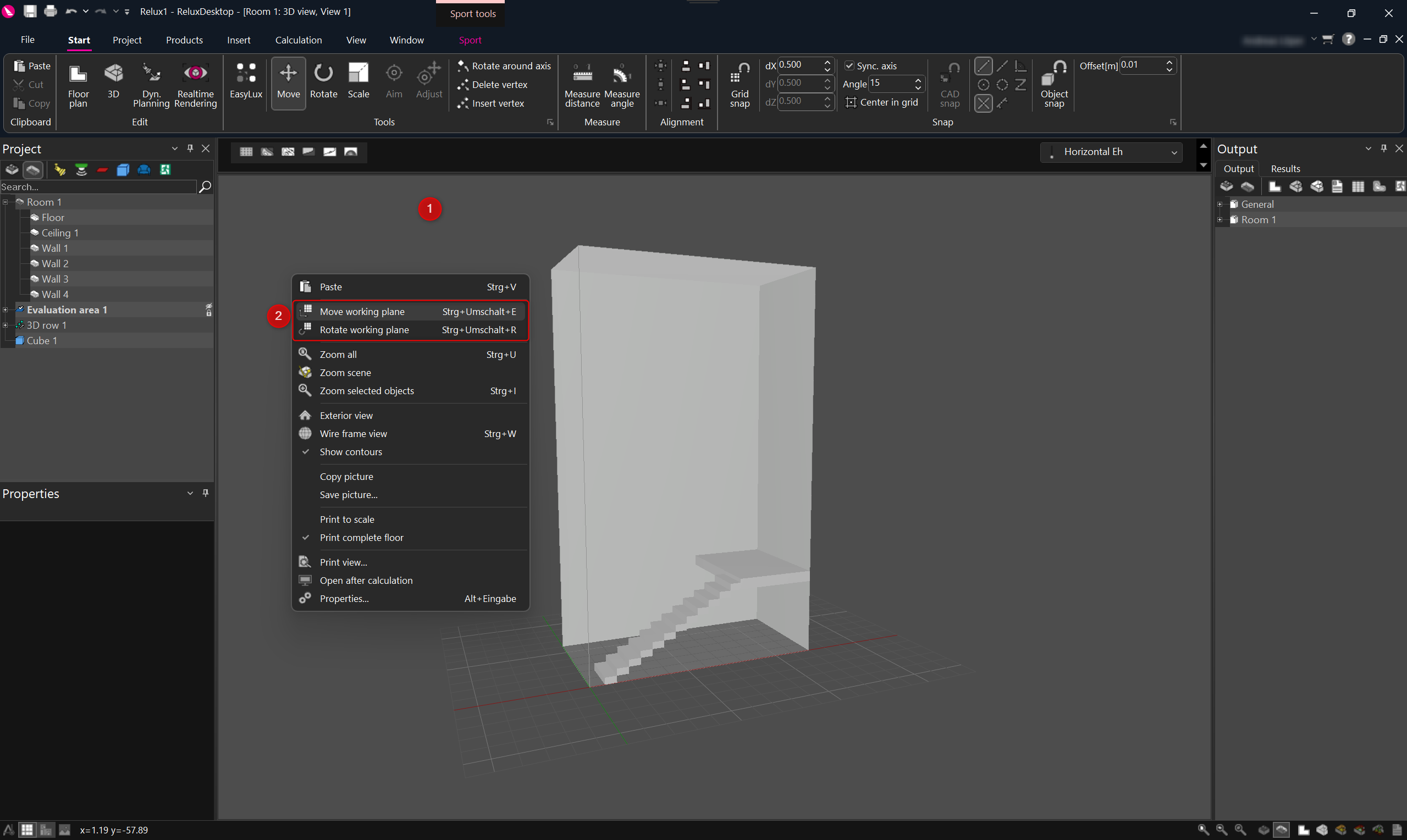
By right-clicking in the workspace, you can also freely move or rotate the "current" working plane using the "Move/Rotate Work Plane" menu. (1,2)
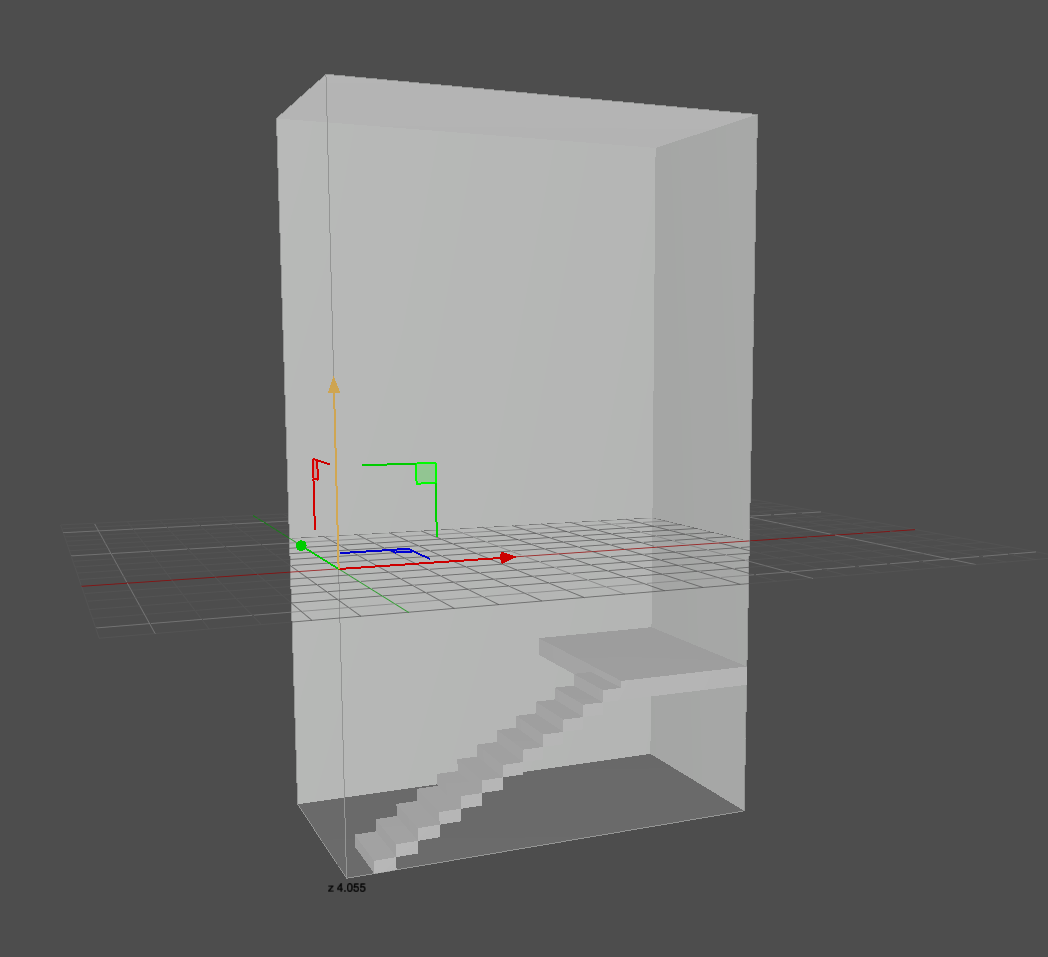
Basic objects inserted at this point are automatically referenced to the specified working plane.