ReluxCAD for Revit –
Product configurator
Configure your luminaires.
The luminaires that are to be positioned or that have already been positioned can contain variants.
To achieve this, select the configurator with the "Configurator" icon and search for available variants.
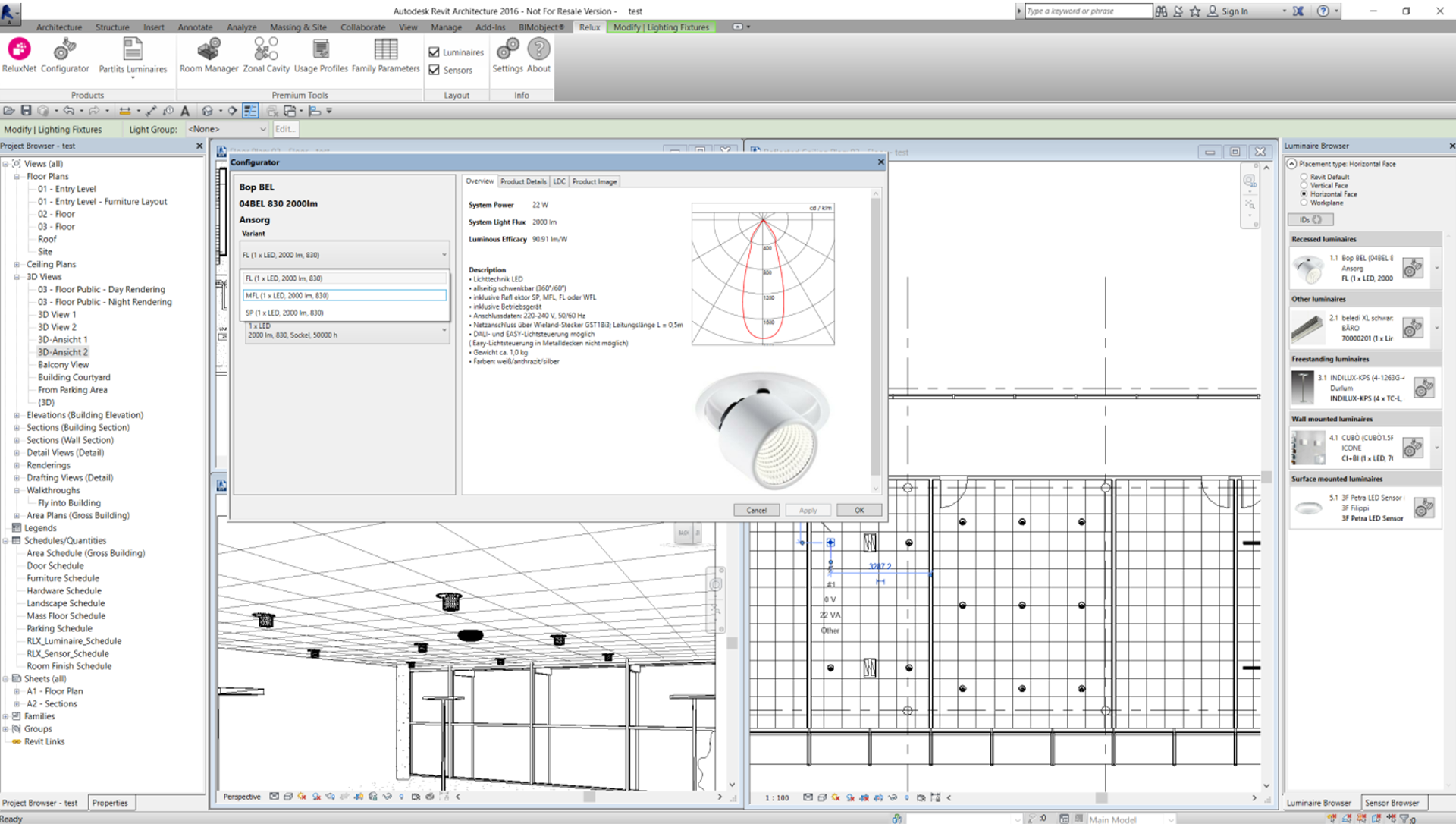
The screenshot above, for example, is a recessed spotlight with different LED chips or reflectors, i.e. with different variants.
Variants can also result in different light distribution curves and technical parameters that are decisive for lighting engineering calculations.
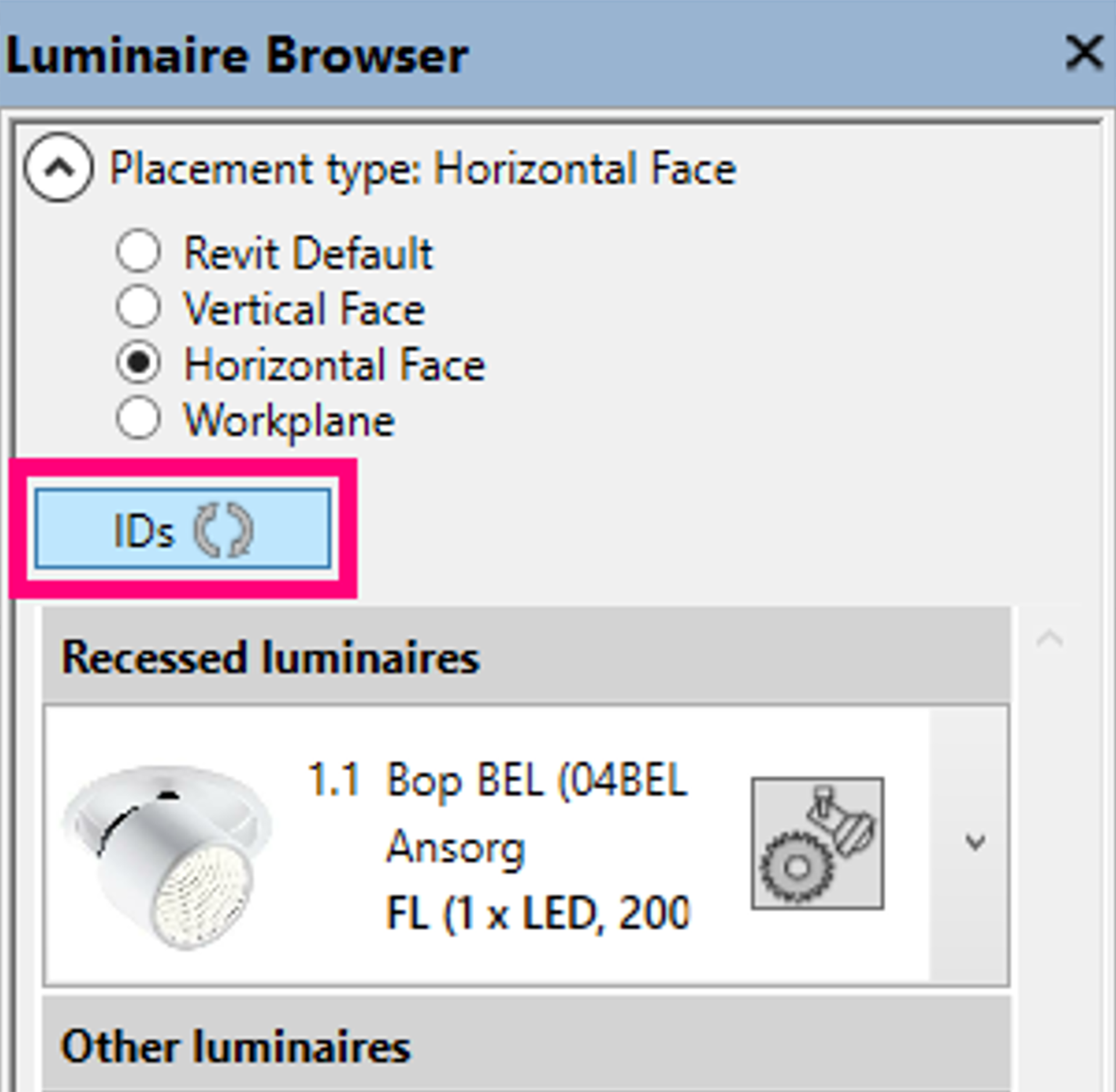
Each product that is adopted is given a consecutive, two-digit type designation. The first number relates to the product and the second number to the variant.
Any gaps in the numbering can potentially be eliminated with the IDs command (see following picture).
Relux is constantly extending the BIM standard for this market. This means that users can also constantly expect new parameters.
Overview of ReluxCAD for Revit