ReluxCAD for Revit – Family Parameters
Installation and first steps: Family Parameters.


Which rules are to apply in this project for saving the product parameters and hence the description of the products used?
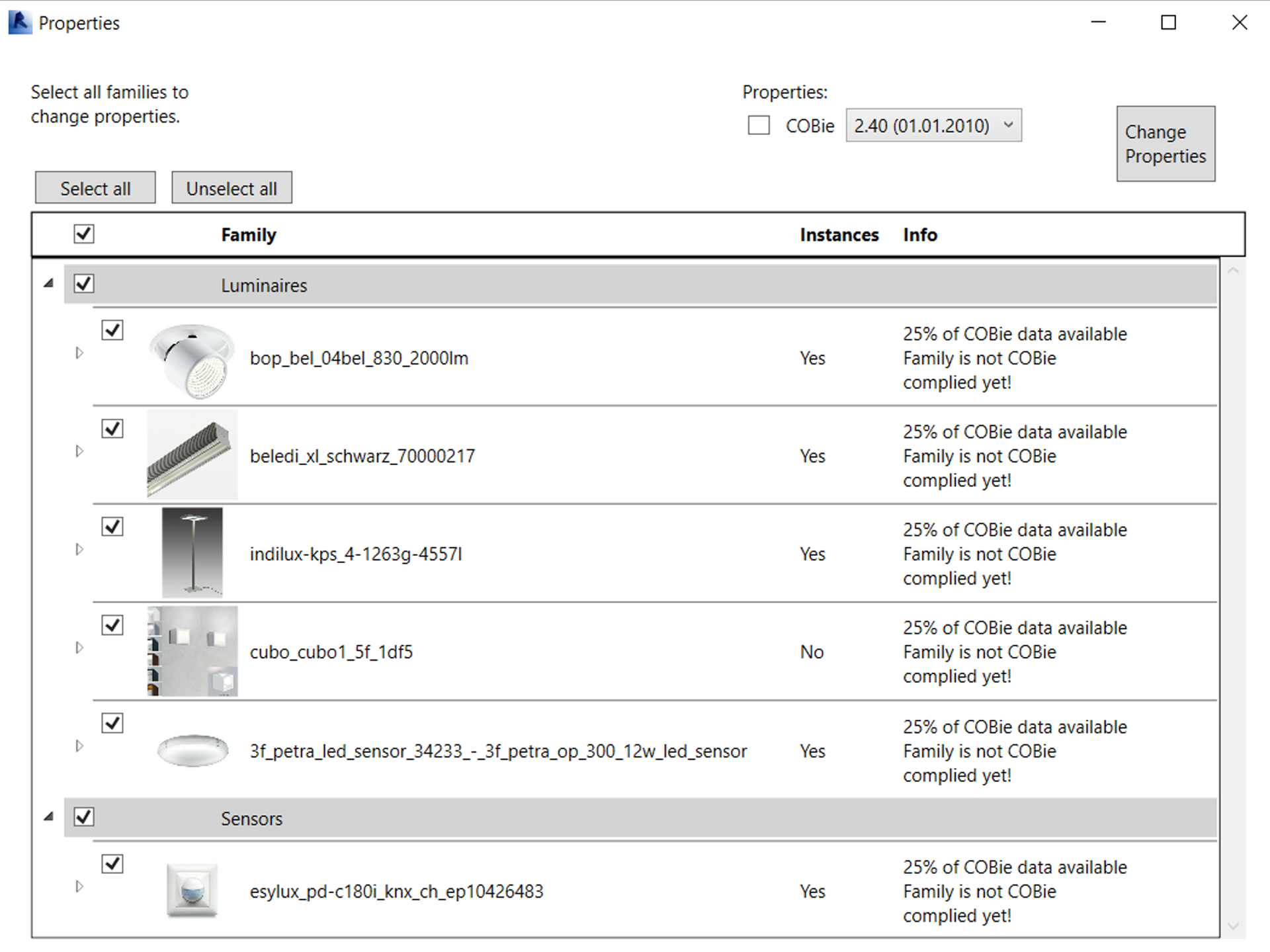
This function makes it possible to extend the parameters of the products as per the desired standards.
Select the desired standard and the products that are to be extended as per the standard.
As a rule, this will be all the products.
Relux is represented on many international bodies as the BIM coordinator for the luminaire and sensor industry and is continually extending the BIM standard for this market.
Hence further standards and, in particular, a higher coverage rate can be expected here in future.
This will mean that we can specify "100% of CoBie data available".
Overview of ReluxCAD for Revit