How to activate a network licence
Learn how to install "CodeMeter User Runtime" on the licence server to activate network licences. If you have purchased a network licence, the "CodeMeter User Runtime" must be installed and configured on the licence server.
1. Install CodeMeter User Runtime
The CodeMeter User Runtime can be downloaded on various platforms directly from the manufacturer's website:
Wibu.com
2. Configure CodeMeter User Runtime
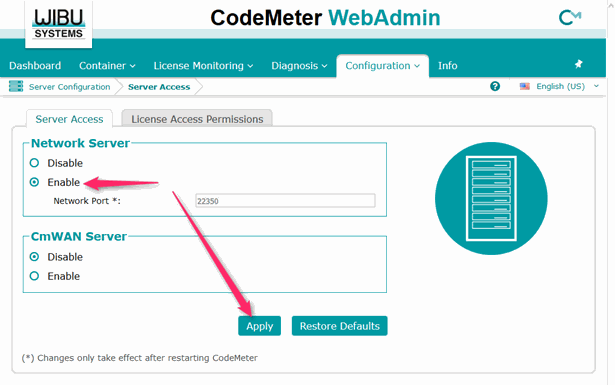
CodeMeter must be run as a network server. This setting can be made via the web interface:
Configure on Wibu
The CodeMeter User Runtime can be downloaded on various platforms directly from the manufacturer's website:
Wibu.com
2. Configure CodeMeter User Runtime
CodeMeter must be run as a network server. This setting can be made via the web interface:
Configure on Wibu
3. Activating the licence
You need an Internet connection to activate the purchased license on your server.
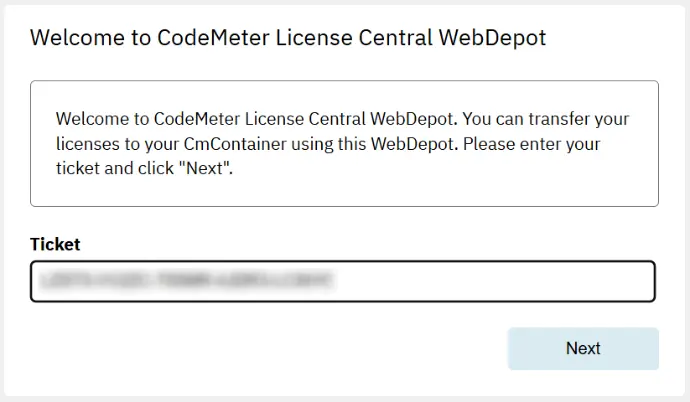
Open the website https://codemeter.relux.com/ and enter the 25 character license code you received in your confirmation email under "Ticket".
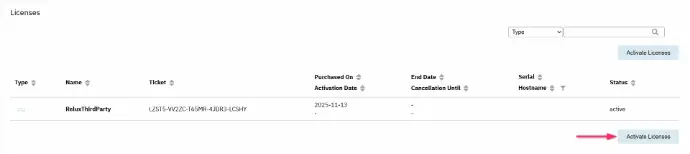
4. Press Activate licences
…and select the USB hardlock image if you want to activate the license on the USB hardlock, or select the document if you want to have the license computer-bound.
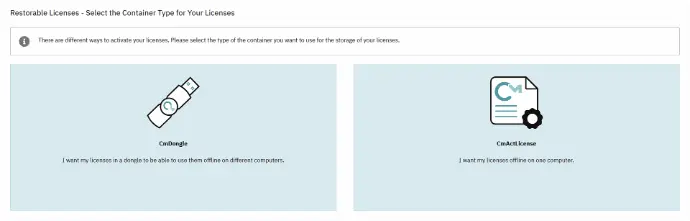
A container is automatically provided for the activation of the license.
![A screenshot of the final license assignment panel within CodeMeter WebDepot, headed by "Available Licenses". An informational box outlines the steps required to complete activation. Below it, the table displays a checked row selecting the "ReluxThirdParty" software license. The lower panel, labeled "Select CmContainer", features a drop-down selection showing a local target container path identified as "128-28558336 ([ReluxLicence])". A pink arrow points directly to the "Activate Selected Licenses Now" button.](/web/image/1507407-a149ec40/small_licence%20activation%203.webp "CodeMeter WebDepot interface illustrating target CmContainer selection and the Activate Selected Licenses Now button.")
The network license will be activated on the server within the next few minutes. Then confirm with Activate Selected Licenses Now.
Close the website and switch from the server to the client computer. Open ReluxDesktop, where the license can now be seen under Licenses.
If ReluxDesktop can not find a licence
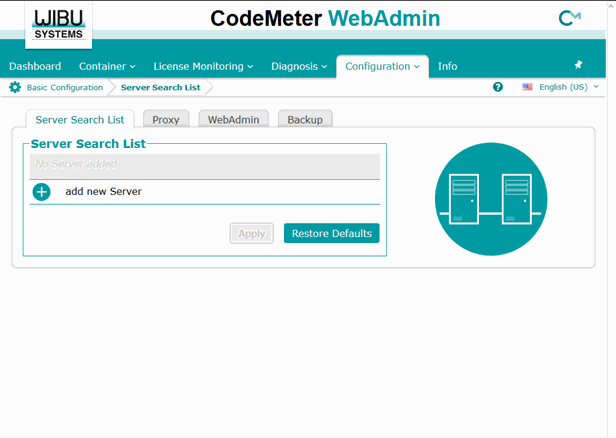
If the payware add-on in ReluxDesktop does not find the already activated license on the server, the IP address of the license server may have to be entered manually in the server search list on the client computer:
Manual IP on Wibu
Close the website and switch from the server to the client computer. Open ReluxDesktop, where the license can now be seen under Licenses.
If ReluxDesktop can not find a licence
If the payware add-on in ReluxDesktop does not find the already activated license on the server, the IP address of the license server may have to be entered manually in the server search list on the client computer:
Manual IP on Wibu
Licence types & activation