How to activate a
single license
Learn how to activate add-ons.
Activating the licence
You need an Internet connection to activate the purchased license.
Open the website https://codemeter.relux.com/ and enter the 25 character license code you received in your confirmation email under "Ticket".
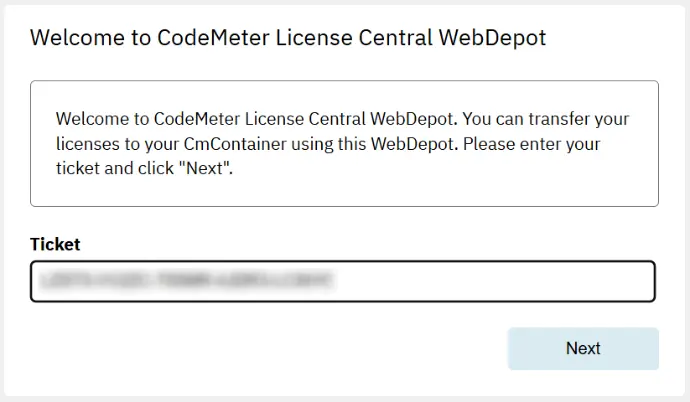
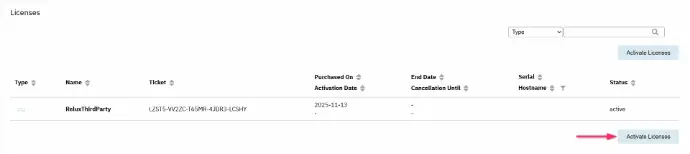
Press the button
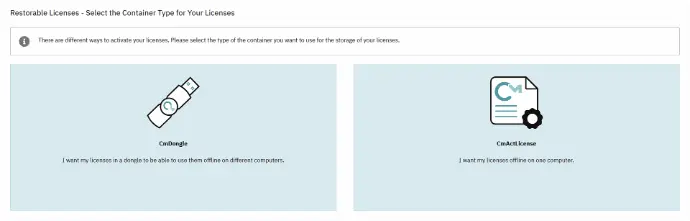
Computer-bound vs USB Hardlock activation
1. Select the USB hardlock image if you want to activate the license on the Relux USB hardlock (*)
2. select the document if you want to have the license computer-bound.
(*) If the license needs to be installed on the Relux USB Hardlock, make sure it is now plugged into your computer.
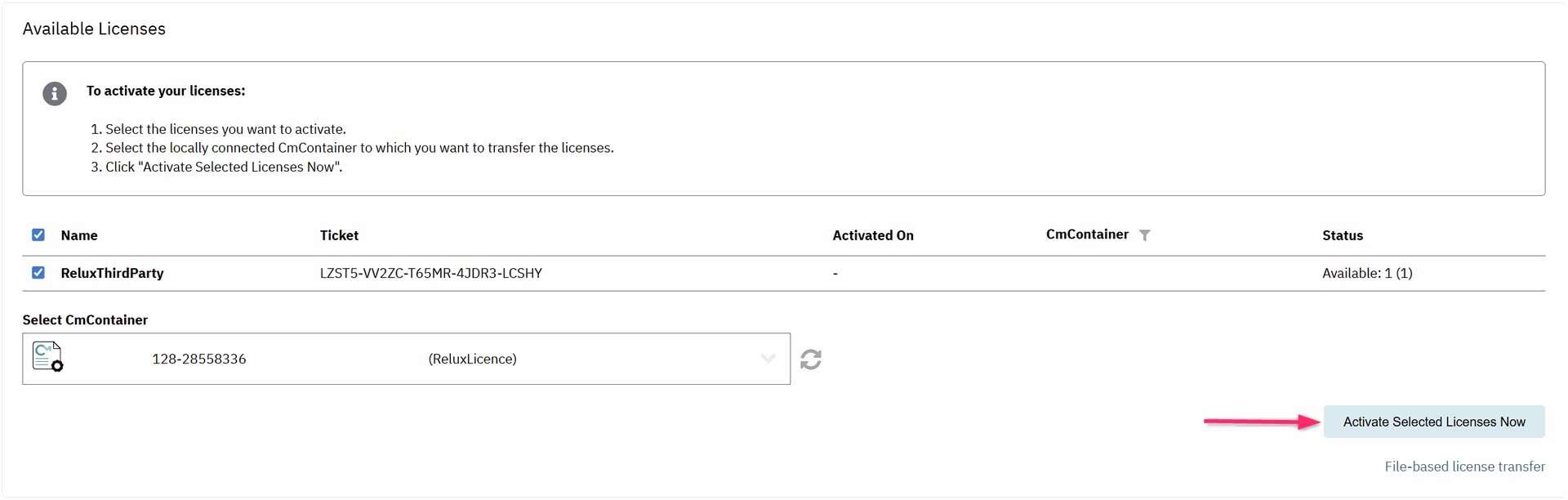
Activate licences
A container is automatically provided for the activation of the license. The single license will be activated within the next few minutes. Then confirm with Activate Selected Licenses Now. Close the website and open ReluxDesktop, where the license can now be seen under Licenses.
How to activate a single licence