Realtime Rendering – 360° panorama images
Create stunning 360°panoramic images for your project presentation!
Create Panoramic Pictures
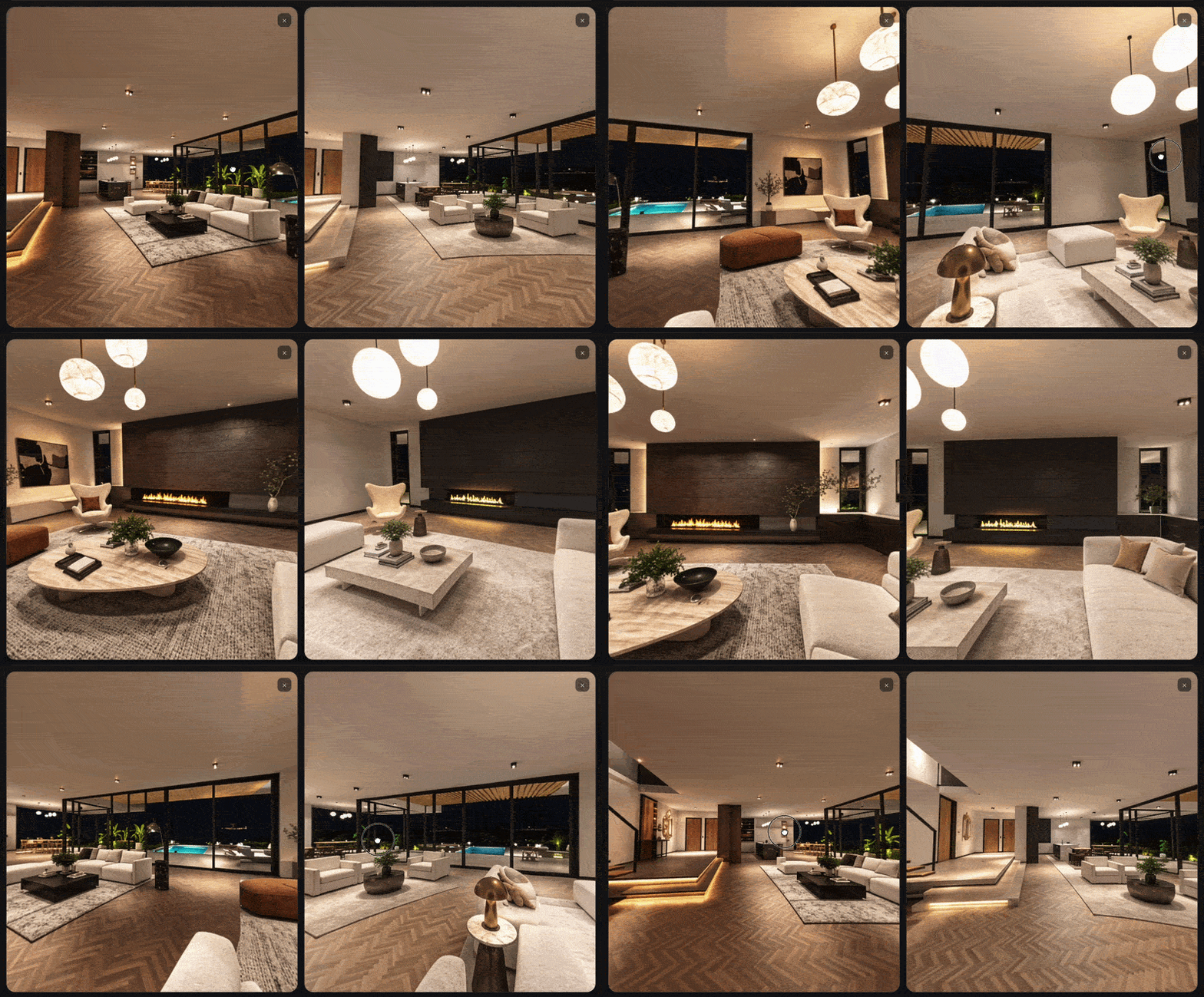
The creation of panoramic pictures through the real-time rendering function in ReluxDesktop opens the door to captivating experiences when viewed through a tool like a panorama viewer.
1. After you have defined the required rendering view from the renderer, the first step is to open the settings for Screen Capture and set the type of capturing to panorama.
2. Then as post-capturing options you can choose to open the screen capture in ReluxDesktop or open it in an external viewer and save it as a panorama image.
3. If you have set the required settings then press on the button "START" to accomplish the creation of the panorama image.


Open in any freely-available VR Viewer
If you open now a free available online panorama viewer like Online 360° Panorama Viewer VR (drag and drop) or pressing on "Upload Image from file", the captured panorama image will be implemented accordingly.
By changing to the full screen button, the user can experience then a 360° view experience throughout the space and navigate with the help of the pan function.
By utilizing the 360° panorama experience, stakeholders will have a supporting tool for their decision making process.


Example files of 360 images from the villa – optimized by AI
View images directly in the free viewer, e.g. from Renderstuff

-skaliert.jpg "360 Image in Full view")
-n.jpg)
Compare different 360° images using an online tool such as an app luw.ai
Realtime Rendering in ReluxDesktop
Need more help?
Ask Chatbot Luxi or submit a support request.