ReluxDesktop – Emergency lighting calculations
ReluxDesktop > Emergency lighting > Emergency lighting calculations
How to complete calculations for emergency lighting.
Explanation
Emergency light functions
"emergency lighting" in the tab "Selected".
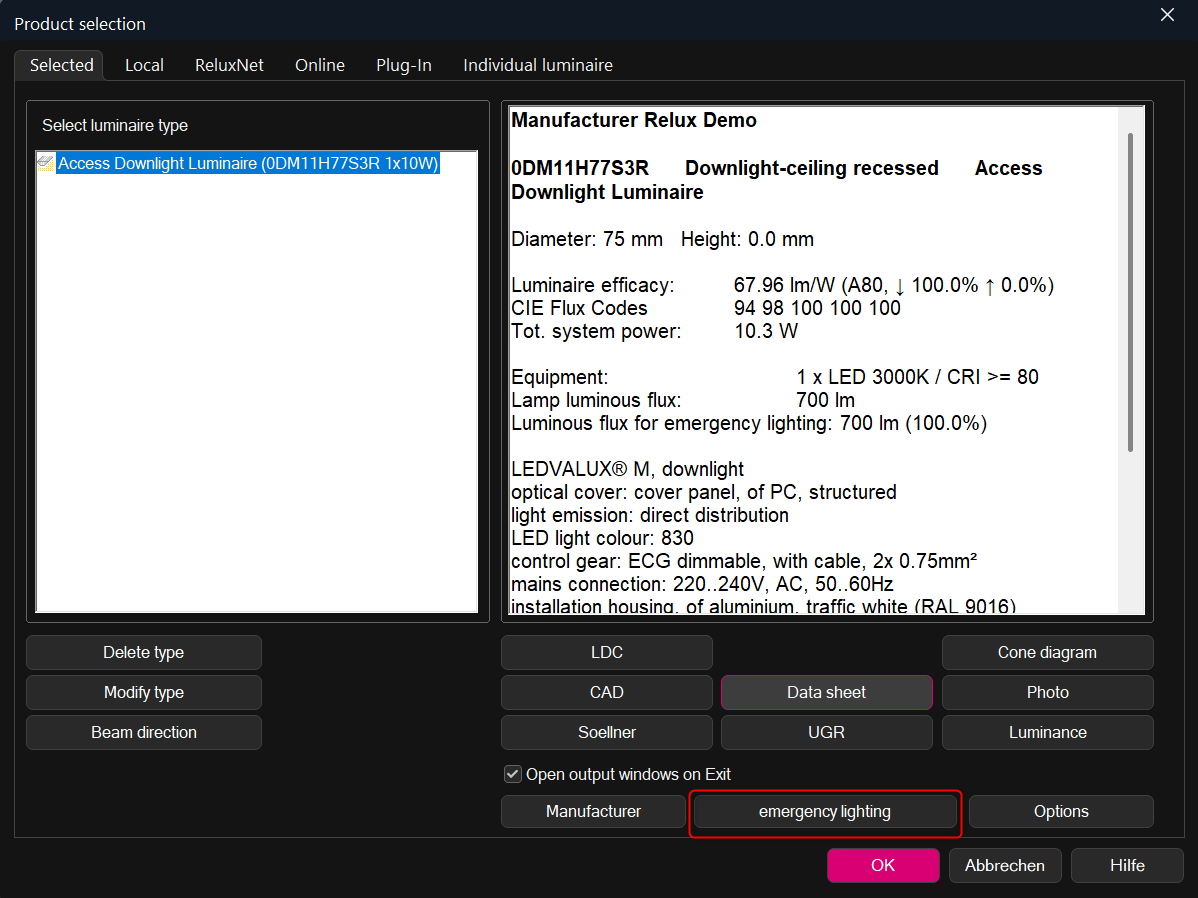
Inside this dialog the luminaire type can be activated for emergency lighting or for artificial lighting as well. Choose one of the two options.
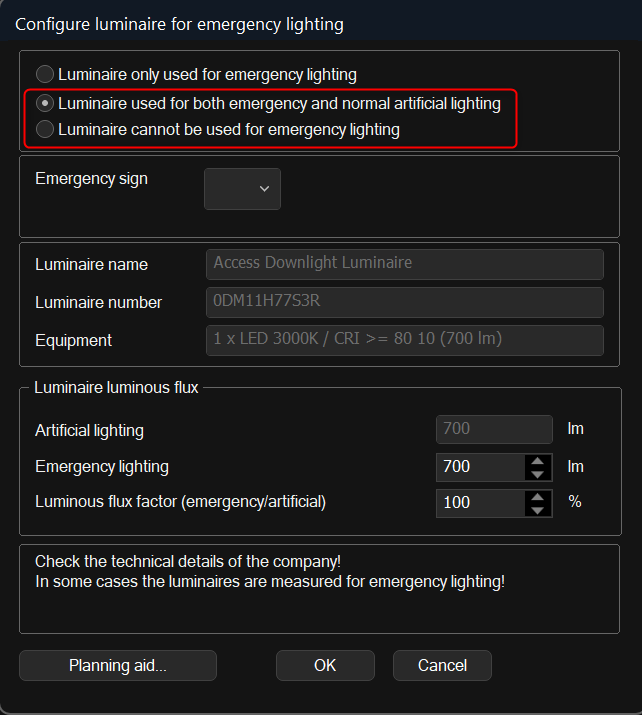
Or you can activate emergency lighting for a placed luminaire in the properties of this type.
For this purpose the checkbox " Emergency lighting on" has to be ticked.

Adding measurement objects
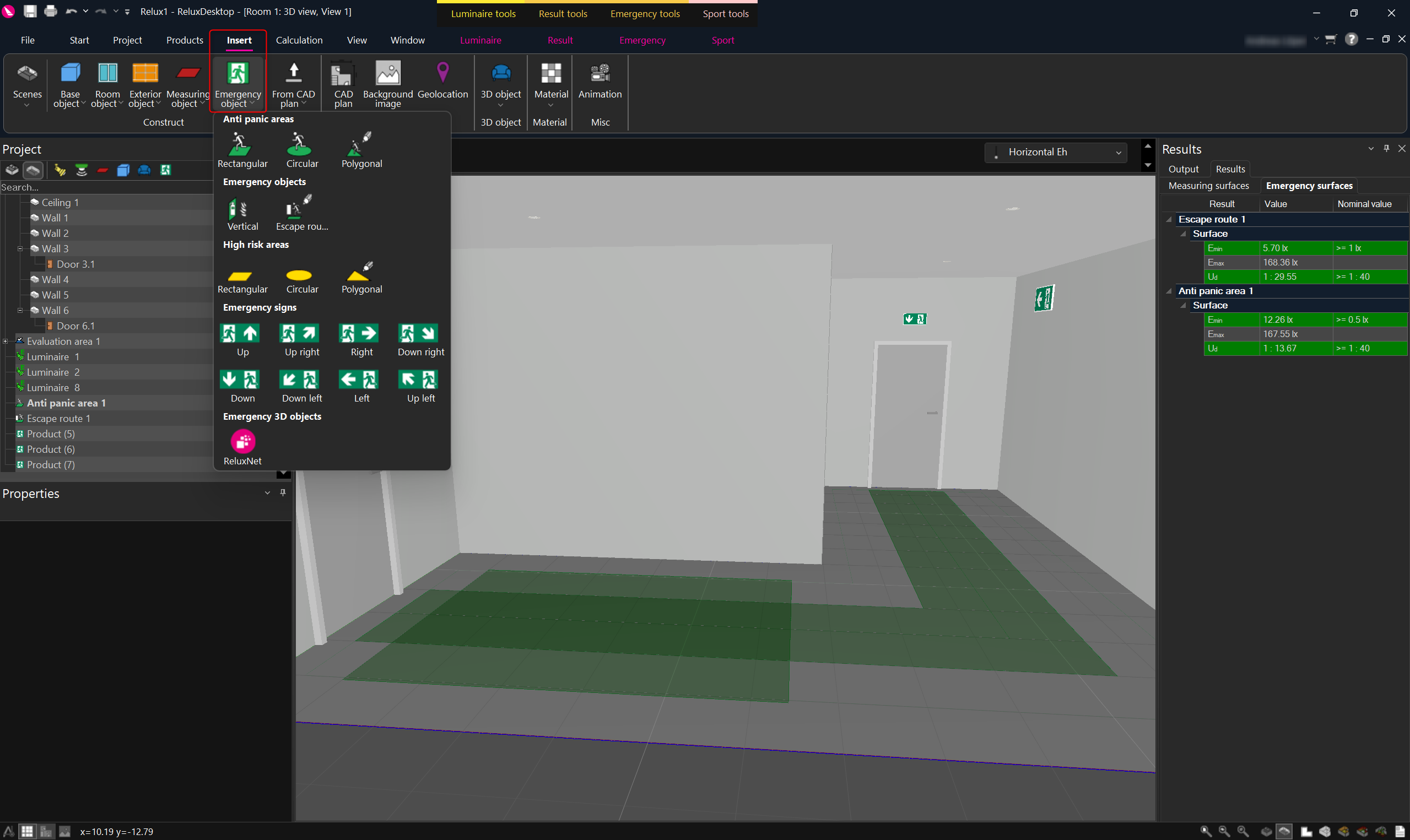
Finally, an emergency area has to be placed into the scene by going to the ribbon menu „Insert“ and pressing the subsequent button „Emergency object“ .
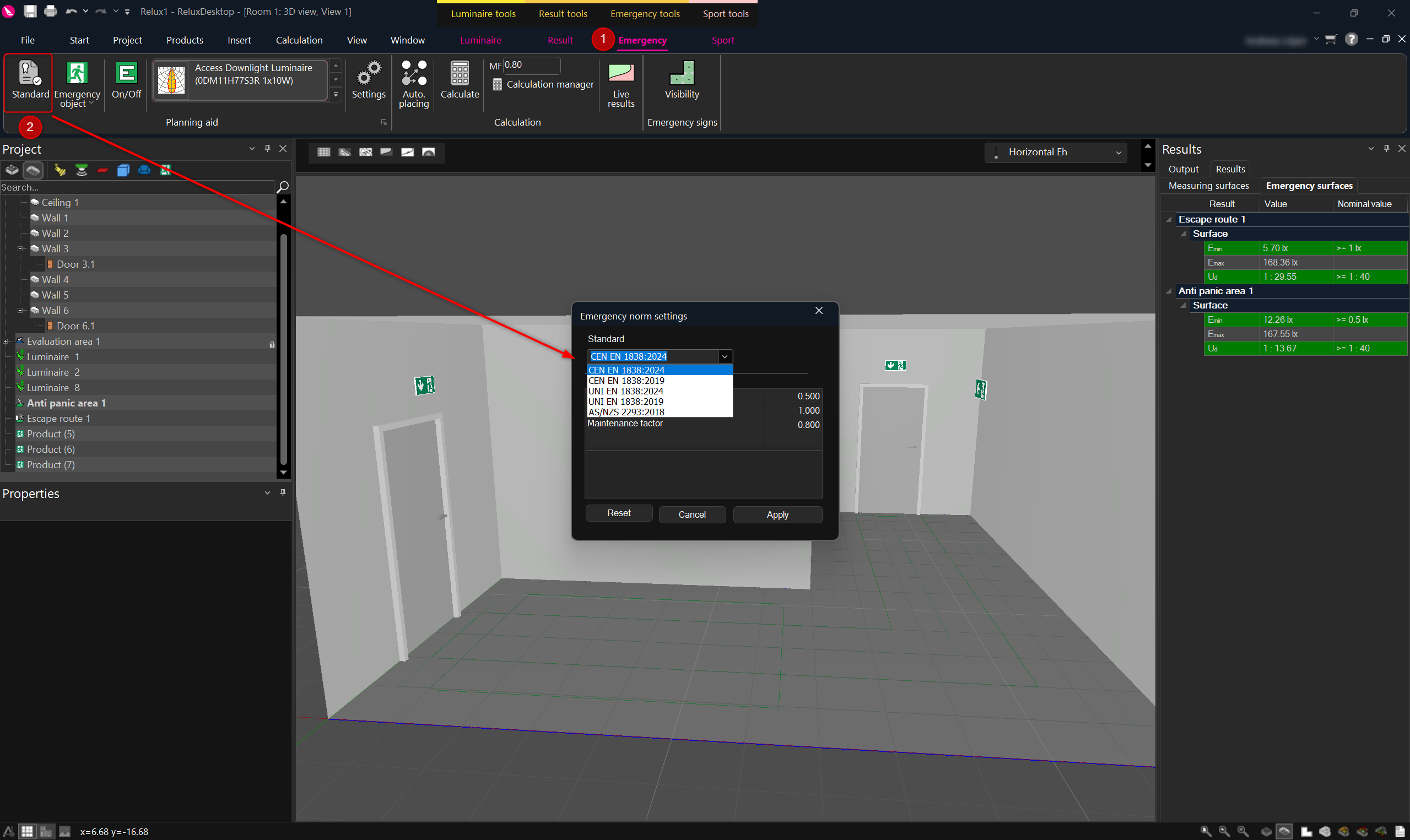
You can also set the standards for your emergency lighting calculation.
„Europe-EN, Italian-UNI, Australia/New Zealand-AS/NZS“
.
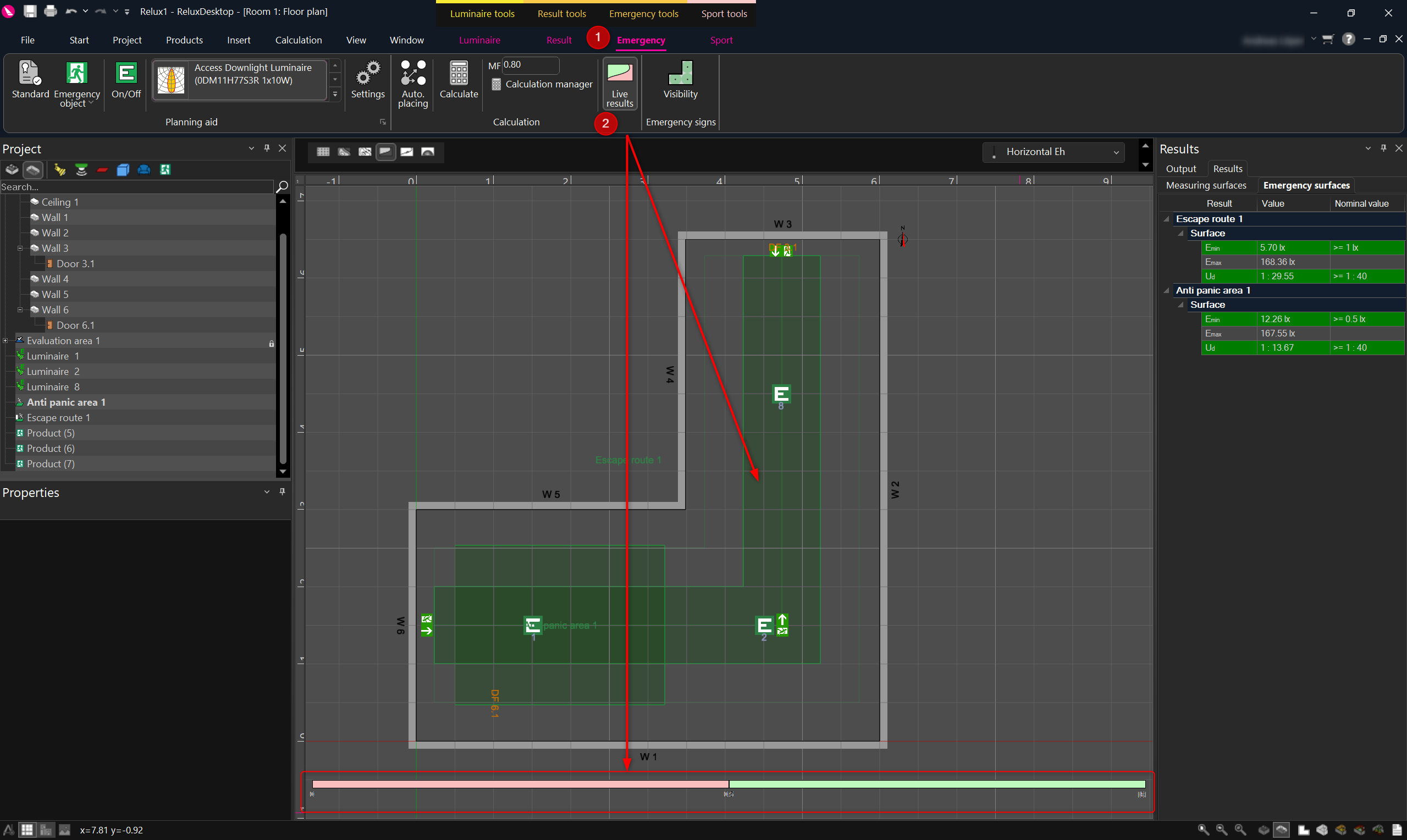
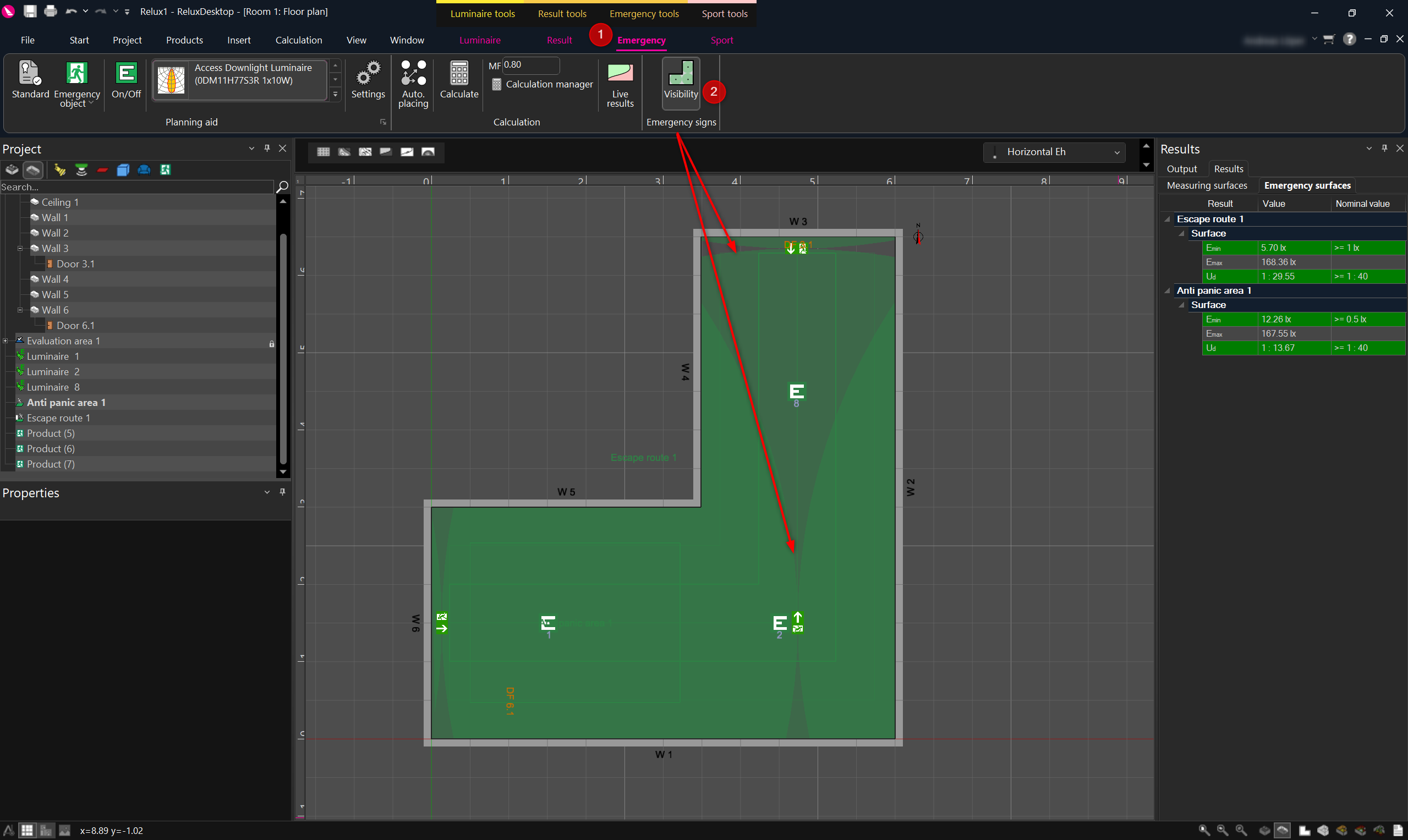
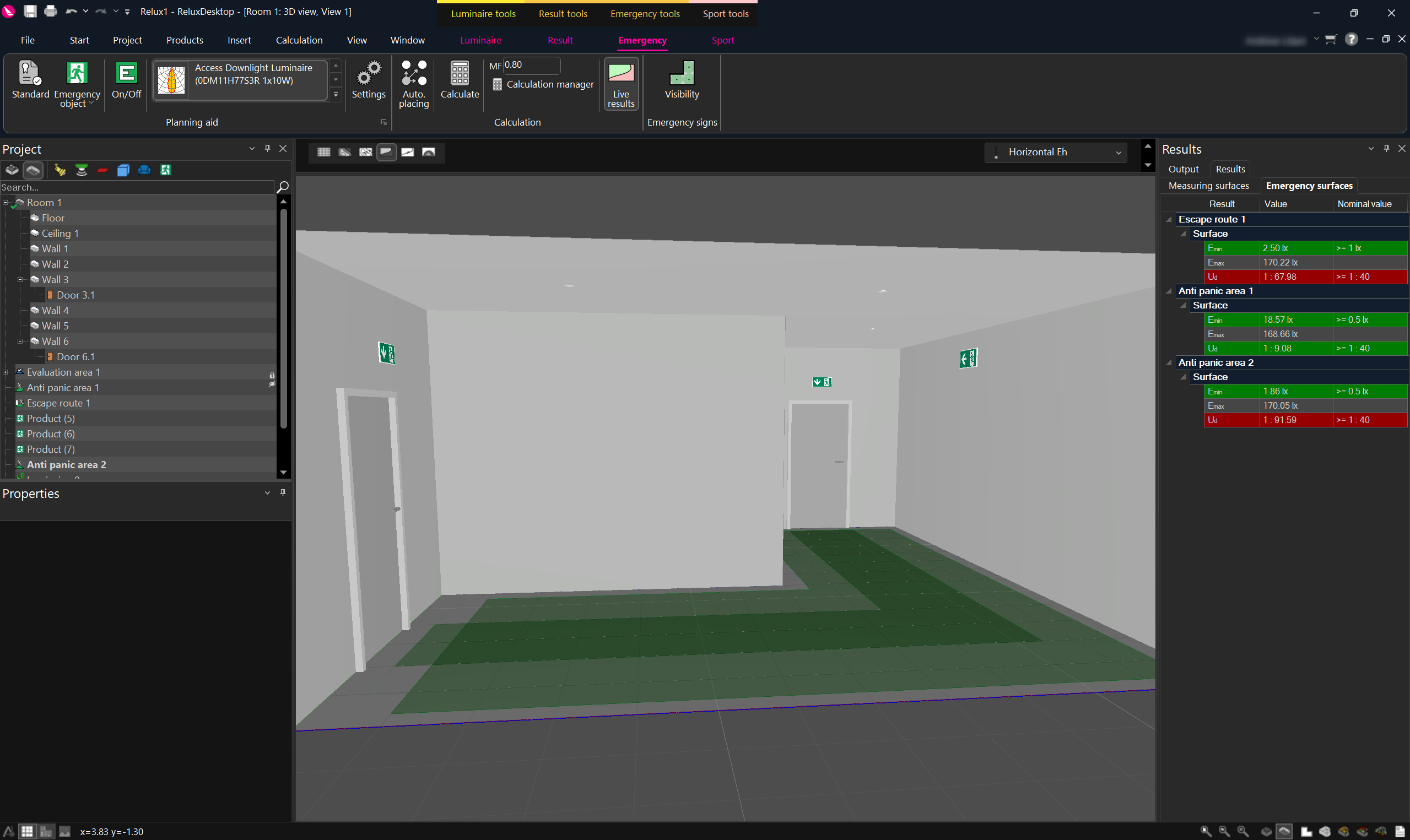
Two useful features are the display of live results and the visibility range of escape route pictograms. Both are available in 2D and 3D mode.